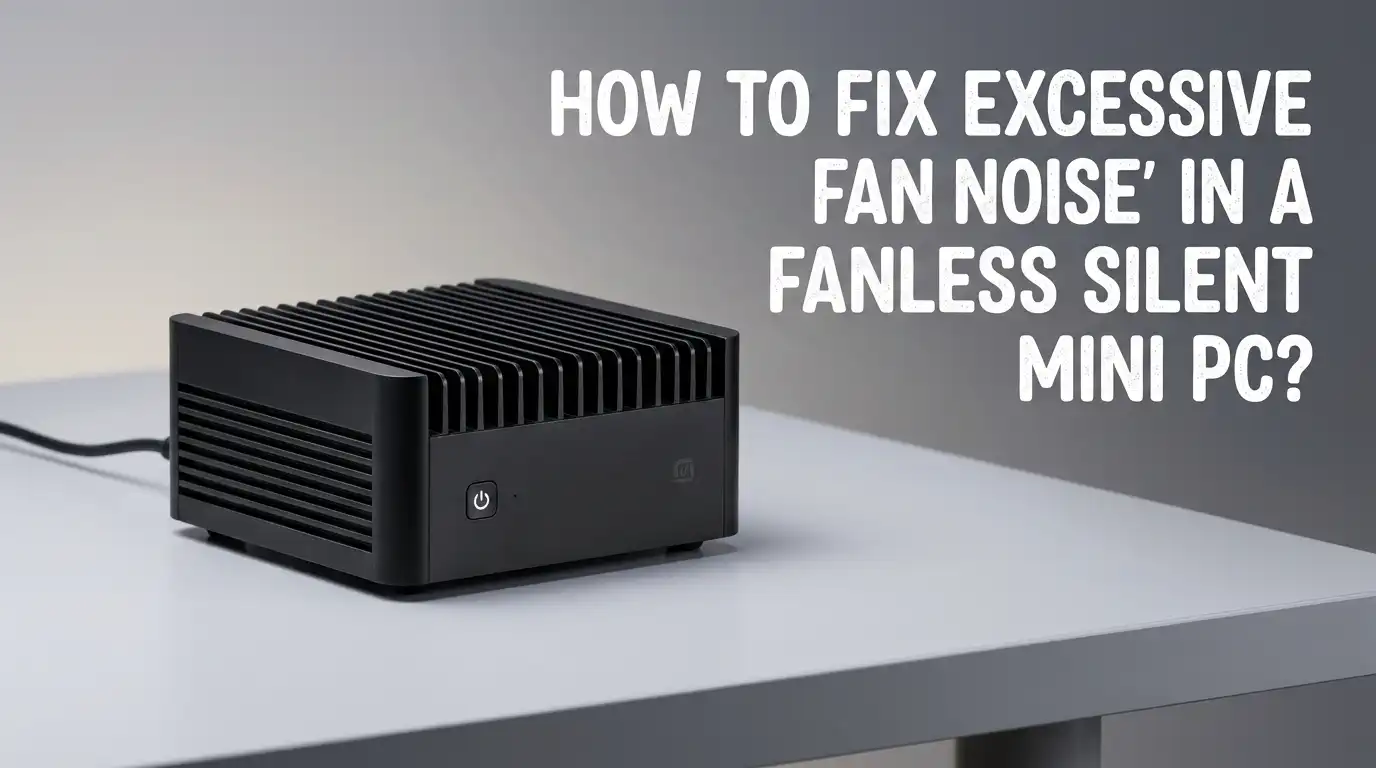
How To Fix Excessive Fan Noise In A Fanless Silent Mini PC?
You bought a fanless silent mini PC for one reason: zero noise. So why is it making sounds? You hear a buzz, a hum, or a faint whine that should not exist.
This problem frustrates thousands of users every year. A fanless PC has no spinning blades. It has no air pushing through ducts. Yet something inside creates an unwanted sound that breaks the silence you paid extra to get.
The good news is that this problem has clear causes and real fixes. The noise you hear is not a fan. It is something else entirely, and once you identify the source, you can often solve it yourself.
In a Nutshell
- Fanless mini PCs can still produce noise from electronic components, power adapters, storage drives, and electrical interference. These sounds are not caused by fans but by other internal and external sources that many users overlook. Here are the key points you need to know before reading the full guide:
- Coil whine is the most common noise source in fanless PCs. Tiny inductors and coils on the motherboard or voltage regulators vibrate at high frequencies under electrical load. This creates a faint but audible buzzing or whistling sound that becomes louder during heavy processing tasks.
- Your power adapter may be the actual noise source. Many users blame the mini PC itself when the external power supply brick is the real culprit. Cheap or mismatched adapters produce electrical hum and coil whine of their own.
- Hard drives with spinning platters create vibration and noise. If your fanless mini PC uses a 2.5 inch HDD instead of an SSD, you will hear mechanical sounds. Switching to solid state storage eliminates this source completely.
- Electrical interference and ground loops cause audible buzzing through speakers and audio equipment. This is not a PC hardware problem but a power delivery issue that affects connected devices.
- Software settings directly affect how hard your PC works, which changes noise levels. Reducing CPU power limits, adjusting power plans, and closing background processes lower the electrical load. Less load means less coil whine.
- Physical dampening methods like rubber pads, conformal coating, and better placement can reduce or eliminate remaining noise. Simple changes to where and how your mini PC sits can make a noticeable difference.
Understanding Why A Fanless PC Still Makes Noise
A fanless mini PC removes the most obvious noise source: the cooling fan. However, a computer contains many other components that can produce sound. Electronic components vibrate when electricity passes through them. This is a basic principle of physics that applies to every circuit board.
Inductors, capacitors, and voltage regulator modules on the motherboard all carry fluctuating electrical currents. These fluctuations cause tiny physical vibrations in the components.
The vibrations move surrounding air molecules and create audible sound waves. Most of the time, these sounds stay below human hearing range. But under certain load conditions, the frequency shifts into the range your ears can detect.
Users on Reddit and hardware forums report this experience frequently. One user described hearing “some sort of static whenever the system is put to work” on a brand new fanless NUC.
Others describe it as a faint high pitched whine that appears during web browsing or video playback. This is completely normal electronic behavior, but it does not mean you have to live with it.
Identifying Coil Whine As The Primary Culprit
Coil whine is the single most reported noise issue in fanless mini PCs. It sounds like a high pitched buzz, squeal, or hiss.
The pitch and volume change based on what your PC is doing at that moment. Scroll a web page and the sound changes. Open a video and it shifts again. This direct link between activity and sound is the signature of coil whine.
The noise comes from inductors on the motherboard or inside the voltage regulation circuitry. These small wire coils expand and contract slightly as current flows through them.
When the frequency of expansion hits the audible range between 20 Hz and 20 kHz, you hear it. Younger people tend to notice it more because they can hear higher frequencies.
To confirm coil whine, bring your ear close to the mini PC while it runs different tasks. Open a CPU stress test and listen.
Then let the system sit idle. If the noise changes with workload, you have confirmed coil whine. This identification step is important because the fix for coil whine differs from fixes for other noise types.
Checking Your Power Adapter For Noise
Many users spend hours troubleshooting their fanless PC when the noise actually comes from the external power supply adapter.
Power bricks contain their own inductors and transformers that can produce audible hum or whine. This is especially true for low quality or no name adapters that ship with budget mini PCs.
Test this by listening closely to the power adapter itself. Place your ear near the brick while the PC runs under load. If the buzzing comes from the adapter rather than the PC chassis, you have found your problem.
One Reddit user reported that simply replacing the stock power supply with a higher quality unit completely eliminated the annoying coil whine from a ZOTAC fanless mini PC.
Pros of replacing the power adapter: This is often the cheapest and simplest fix. A quality replacement adapter costs relatively little and requires zero technical skill to swap.
Cons of replacing the power adapter: You must match the exact voltage and amperage specifications. Using the wrong adapter can damage your mini PC or create new problems.
Replacing A Mechanical Hard Drive With An SSD
If your fanless mini PC contains a 2.5 inch spinning hard drive, it produces mechanical noise. Hard drives have spinning platters and moving read write heads that generate a constant low hum and occasional clicking sounds. This completely defeats the purpose of a fanless design.
Check your mini PC specifications to see if it shipped with an HDD. Many budget fanless models cut costs by including mechanical storage. Open the case and look inside. A hard drive has a metal body and feels heavier than an SSD. Replacing it with a SATA SSD or an M.2 NVMe drive removes all mechanical noise instantly.
Pros of switching to SSD storage: Complete elimination of mechanical noise. Faster boot times and application loading. Lower power consumption and less heat generation. No moving parts means higher reliability.
Cons of switching to SSD storage: Requires opening the case and cloning your data or reinstalling your operating system. SSDs with higher capacities cost more per gigabyte than hard drives.
Reducing CPU Power Draw To Lower Coil Whine
Coil whine gets louder when electrical load increases. Reducing how hard your processor works directly reduces the intensity of coil whine. This is one of the most effective software fixes available, and it requires no physical changes to your hardware.
Open your Windows power settings and switch from “High Performance” to “Balanced” or “Power Saver” mode. This prevents the CPU from running at maximum speed during light tasks.
You can also limit the maximum processor state to 80 or 90 percent through advanced power settings. This small reduction in peak performance often produces a large reduction in audible noise.
For more control, access your BIOS settings during startup. Look for options labeled CPU power limit, PL1, PL2, or turbo boost.
Disabling turbo boost or lowering the power limit by 5 to 10 watts significantly reduces electrical noise without a major impact on everyday tasks like browsing, email, and document editing. Several forum users confirmed that turning off CPU boosting in the BIOS eliminated coil whine on their fanless systems entirely.
Applying Conformal Coating Or Hot Glue To Noisy Coils
This method physically stops coil whine at the source. Conformal coating is a thin protective layer applied to circuit board components that dampens vibrations. It works by adding mass and stiffness to the tiny inductors that create the buzzing sound. Some users describe it as “glorified nail polish” for electronics.
To apply this fix, open your fanless mini PC and locate the inductors on the motherboard. They are small rectangular or cylindrical components, often near the CPU power delivery area. Apply a thin layer of non conductive conformal coating or a small dab of hot glue over each inductor. Let it dry completely before reassembling.
Pros of conformal coating: Directly addresses the vibration source. Permanent fix that does not reduce PC performance. Low cost with materials available at electronics stores.
Cons of conformal coating: Requires opening the case, which may void your warranty. Demands patience and careful application. Applying too much or using conductive material can damage the board. This fix is best for users comfortable with electronics work.
Fixing Ground Loop Buzz And Electrical Interference
Sometimes the noise you hear does not come from the mini PC itself. Ground loops create a low frequency hum that travels through audio cables to your speakers or headphones. This happens when your mini PC and audio equipment connect to different electrical circuits with slightly different ground potentials.
The telltale sign of a ground loop is a constant 50 or 60 Hz hum that stays at the same volume regardless of what the PC is doing. It does not change with CPU load or activity. This distinguishes it from coil whine, which fluctuates with workload.
Fix this by plugging your mini PC and audio equipment into the same power strip. If that does not help, try a ground loop isolator on your audio cable.
Using a USB DAC with optical input can also break the ground loop by removing the direct electrical connection between the PC and your audio system. Another option is to use Bluetooth speakers or headphones, which eliminate the wired path for interference entirely.
Improving Physical Placement And Vibration Dampening
Where you place your fanless mini PC affects how much noise you hear. Hard surfaces like glass or metal desks amplify tiny vibrations from electronic components. A faint coil whine that you would never notice on a soft surface becomes clearly audible when the PC sits on a hard desk.
Place small rubber pads or silicone feet under your mini PC. These absorb vibrations before they transfer to the desk surface. You can buy adhesive rubber bumpers at any hardware store. Some users report that a simple mouse pad under the mini PC reduces perceived noise significantly.
Pros of vibration dampening: Extremely cheap and easy. No technical skill required. Does not void warranty or modify the PC in any way. Reversible at any time.
Cons of vibration dampening: Only reduces transmitted vibration noise. Does not address airborne coil whine that radiates directly from the PC. Works best as a supplementary fix combined with other methods.
Also avoid placing your fanless PC inside enclosed cabinets. While fanless PCs do not need airflow for fans, they still rely on natural convection for cooling. A hot chassis can increase electrical resistance and change the noise profile of internal components.
Updating BIOS And Firmware For Noise Improvements
Manufacturers sometimes release BIOS updates that change power delivery behavior and reduce coil whine. Updated voltage regulation settings can shift the frequency of electrical noise outside the audible range. This is one of the easiest fixes to try because it requires no physical changes.
Visit your mini PC manufacturer’s support page and download the latest BIOS version. Follow their instructions for updating.
Some users on the Minisforum and Beelink forums reported that BIOS updates noticeably changed or eliminated whining sounds from their systems. One user noted that their mini PC started making noise after a BIOS update, which means the reverse is also possible.
Pros of BIOS updates: Free, quick, and easy to apply. Can resolve the issue without any hardware modification. May also improve thermal performance and system stability.
Cons of BIOS updates: A failed BIOS update can brick your system. Not all manufacturers release updates that address noise. The update might change other system behaviors you did not expect. Always read the changelog before updating and follow backup procedures.
Checking For Background Processes That Increase Load
Your fanless mini PC may seem idle, but background processes can keep the CPU busy without your knowledge. Windows Update, antivirus scans, cloud sync services, and indexing all create CPU load. This load generates electrical activity that produces coil whine.
Open Task Manager by pressing Ctrl Shift Escape. Click the CPU column header to sort by usage. Look for any process using more than 5 percent of CPU continuously. Common culprits include Windows Search Indexer, OneDrive sync, antivirus real time scanning, and browser extensions running in the background.
Disable unnecessary startup programs through Task Manager’s Startup tab. Schedule Windows Update and antivirus scans for times when noise does not bother you.
Reducing idle CPU usage from 15 percent down to 2 or 3 percent can make coil whine drop below audible levels. This is a free fix that also improves your mini PC’s responsiveness and power efficiency.
Knowing When To Return Or Replace Your Fanless Mini PC
Sometimes the noise is simply too loud to fix. Not all fanless mini PCs are built equally, and some units have worse coil whine than others due to manufacturing variation. Two identical models from the same production line can produce different noise levels because of slight differences in component tolerances.
If you have tried software fixes, power adapter replacement, and physical dampening without success, consider returning the unit. Most retailers accept returns within 30 days, and manufacturers may offer exchanges under warranty. Document the noise with a video recording that clearly captures the sound. This evidence helps your return claim.
Pros of returning or exchanging: You may receive a unit with less coil whine. A full refund lets you choose a different model with better noise reviews.
Cons of returning or exchanging: The replacement unit might have the same issue. You lose time setting up a new system. Some retailers charge restocking fees.
Before returning, check online forums to see if other users of the same model report similar noise levels. If the problem is widespread for that model, choose a different product entirely.
Choosing A Truly Silent Fanless Mini PC From The Start
Prevention is better than troubleshooting. Selecting the right fanless mini PC from the start saves you hours of frustration. Look for models that use low power processors in the 6 to 15 watt TDP range. These chips generate less heat and require less electrical current, which reduces the chance of audible coil whine.
Read reviews that specifically mention noise. Search for the model name plus “coil whine” or “noise” on Reddit and hardware forums before buying.
Avoid the cheapest options, as they tend to use lower quality voltage regulators that are more prone to whine. Brands with metal chassis designs often perform better because the heavier enclosure dampens vibrations naturally.
Look for models that use high quality capacitors and inductors from reputable manufacturers. Some fanless PC makers specifically advertise low noise component selection.
Solid state storage should come standard. If the unit ships with a mechanical hard drive, that is a red flag for a manufacturer cutting corners on a “silent” product.
FAQs
Why does my fanless mini PC make a buzzing noise if it has no fans?
The buzzing sound is almost certainly coil whine. Electronic components like inductors and capacitors vibrate when electrical current passes through them. These vibrations produce high frequency sounds that become audible during moderate to heavy processor loads. The noise has nothing to do with fans. It is a normal electrical phenomenon that varies in severity between individual units.
Can coil whine damage my fanless mini PC?
No. Coil whine is purely an acoustic annoyance. It does not indicate a hardware defect or a safety risk. The tiny vibrations that create the sound do not affect component lifespan or system stability. Your mini PC will function perfectly even with noticeable coil whine. The only impact is on your comfort and concentration.
Will replacing the power adapter definitely fix the noise?
Not always, but it is worth trying. A significant number of noise complaints trace back to the external power adapter rather than the PC itself. If your adapter produces audible hum or buzz, a higher quality replacement with the correct voltage and amperage rating may solve the problem. However, if the coil whine originates from the motherboard components inside the PC, a new adapter will not help.
Is it safe to apply conformal coating to my mini PC motherboard?
Yes, when done correctly with the right materials. Use only non conductive, electronics grade conformal coating. Apply thin layers and let each layer dry completely. Avoid coating connectors, ports, or any component that generates intentional heat. If you are not comfortable working with circuit boards, this method may not be right for you.
Should I buy a fanless mini PC or a regular mini PC with quiet fans?
This depends on your noise tolerance. A fanless PC produces zero fan noise but may still have coil whine. A quality mini PC with fans can operate at 18 to 25 dB during idle, which is barely audible. For most users, a well tuned mini PC with fans offers better performance with nearly inaudible sound. Fanless designs are best for recording studios, medical settings, or users who are extremely sensitive to any sound at all.
How do I tell the difference between coil whine and a ground loop hum?
Coil whine changes pitch and volume based on CPU activity. Scroll a webpage, open an application, or run a benchmark, and the sound will shift. A ground loop hum stays at a constant pitch and volume no matter what the PC is doing. Ground loop hum typically travels through audio cables to speakers or headphones. Coil whine radiates directly from the PC chassis. This behavioral difference makes them easy to distinguish once you know what to listen for.

Hi, I’m Pearl Standen, the voice behind The Web Utility. I’m a passionate tech enthusiast who loves exploring the latest gadgets, smart devices, and electronics that make everyday life easier. Through my website, I share honest, well-researched reviews of trending Amazon products to help you make smarter buying decisions.