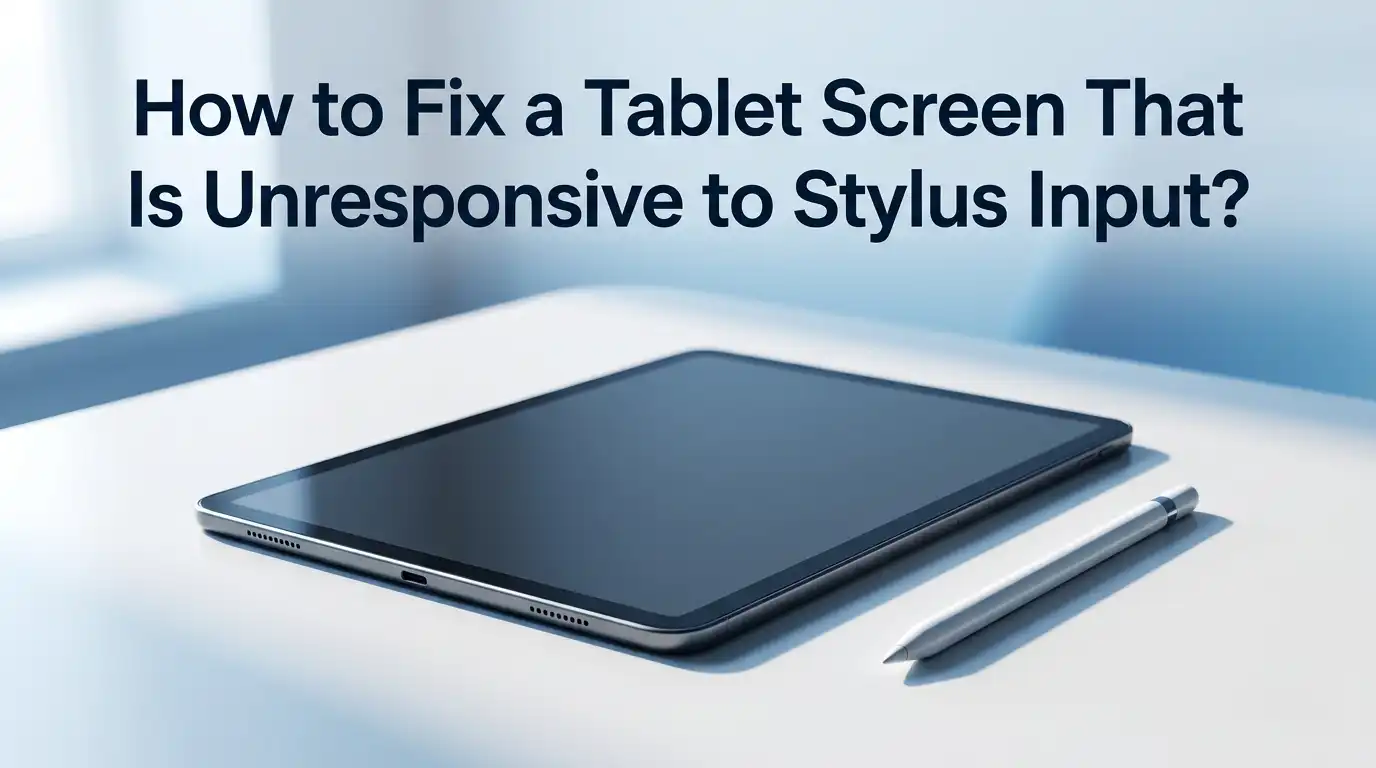
How to Fix a Tablet Screen That Is Unresponsive to Stylus Input?
Your stylus glides across the screen, but nothing happens. No lines. No taps. No response. This problem can stop your work, sketching, or note taking in seconds.
The good news is that most stylus issues come from simple fixes you can do at home. You do not always need a repair shop or a new device.
This guide walks you through every step to bring your stylus back to life. It covers software glitches, hardware problems, driver errors, and screen damage. You will learn what to check first, what to avoid, and when to call a professional.
In a Nutshell
- Restart first, always. A quick reboot of both the tablet and the stylus solves a surprising number of input problems. It clears memory bugs and resets the connection between devices.
- Check the stylus tip and battery. A worn nib or a dead battery is one of the most common reasons a stylus stops drawing or tapping. Replace the nib and charge the pen before trying anything else.
- Update drivers and firmware. Outdated software causes pressure sensitivity loss, lag, or full input failure. Visit the maker’s website and install the latest version for both tablet and pen.
- Remove screen protectors and cases. Thick films and magnetic covers can block the digitizer signal. Take them off and test the pen on a clean screen before deciding the hardware is faulty.
- Calibrate the digitizer. Many tablets have a built in tool to match pen position with screen output. Run the calibration to fix offset, drift, or dead zones.
- Know when to seek repair. If the screen is cracked or the digitizer is dead, home fixes will not help. Contact the maker or a trusted repair shop for hardware service.
Why Your Tablet Screen Stops Responding to the Stylus
A stylus needs three things to work: power, a clean signal path, and a working digitizer. When any one of these fails, your pen stops drawing. The problem is often software related, like a frozen app or an outdated driver. Other times, the fault is physical, such as a worn nib or a cracked screen.
Some tablets use active styluses with batteries and Bluetooth. Others use passive pens that need no power. Knowing your pen type helps you find the right fix.
Active pens fail when the battery dies. Passive pens fail when the tip wears out or the screen layer is damaged. Both can suffer from interference, dirt, or software bugs.
Restart Your Tablet and Stylus First
A simple restart fixes more problems than people expect. Memory leaks, frozen processes, and small software bugs all clear when you reboot. Turn your tablet off fully. Wait about thirty seconds. Then turn it back on. This resets the system and reloads the drivers your stylus needs.
For active styluses, turn the pen off and on again. If your pen has a removable battery, take it out for a minute and put it back. Bluetooth styluses may need to reconnect through the settings menu. After the restart, test the pen on a notes app.
Pros: Fast, free, and safe. Works for many common glitches.
Cons: Will not fix hardware faults, dead batteries, or driver problems.
Check the Stylus Battery and Charge It Fully
Many stylus pens use rechargeable batteries or small replaceable cells. A low battery often causes weak input, missed strokes, or total failure.
Plug your pen into its charger and let it sit for at least thirty minutes. Some pens charge through USB C, while others use magnetic docks or attach to the tablet itself.
Look for a charging light on the pen body. If no light appears, try a different cable or charger. For pens with AAAA batteries, swap in a fresh one. Always use the cable that came with your device when possible, as third party cables can fail to deliver full power.
Pros: Easy to do and often the answer for active pens.
Cons: Does not help passive styluses or pens with sealed dead batteries.
Inspect and Replace the Stylus Nib
The nib is the small tip at the end of your pen. It touches the screen and takes the most wear. Over time, it gets flat, cracked, or stuck inside the pen body. A worn nib can cause skipping, scratching, or no response at all.
Pull the nib out gently using the small tool that came with your stylus, or use tweezers. Look at the tip under good light. If it looks short, jagged, or worn flat, swap it for a new one. Most styluses come with spare nibs in the box. Push the new nib in firmly until it clicks.
Pros: Cheap, quick, and restores smooth drawing for most pens.
Cons: You must have spare nibs on hand, and not all pens use replaceable tips.
Remove Screen Protectors and Cases
Thick glass or plastic screen protectors can block stylus signals. Some pens need direct contact with the digitizer layer. A poor quality film adds distance and weakens the response. Magnetic cases and metal stands can also interfere with active pens.
Take off the screen protector and any case. Wipe the screen with a soft, dry cloth. Test the pen again. If it works now, the cover was the problem. You can buy a thinner, stylus friendly film made for drawing tablets. Look for films labeled as paper feel or pen compatible.
Pros: Reveals hidden interference and is reversible.
Cons: You lose screen protection, and good replacement films can cost more than basic ones.
Clean the Screen and the Stylus Tip
Dust, oil, and sticky residue build up on tablet screens. This grime can block the digitizer from sensing your pen. Skin oil, food, and lint are the worst offenders. A dirty stylus tip causes the same problem from the other end.
Use a microfiber cloth to wipe both the screen and the pen tip. For tough spots, dampen the cloth with a tiny amount of distilled water or screen cleaner. Never spray liquid directly on the tablet. Let everything dry fully before testing. Avoid alcohol on oleophobic coatings, as it strips the protective layer over time.
Pros: Free, safe, and improves both pen and finger input.
Cons: Only helps if dirt was the cause. Will not fix internal faults.
Update Tablet Software and Stylus Firmware
Outdated software is a top cause of pen failure. Operating system updates often include digitizer fixes and Bluetooth patches. Pen makers like Wacom, Huion, XP Pen, Samsung, and Apple release firmware that improves accuracy and connection stability.
Open your tablet settings and check for system updates. Install anything pending. Then open the companion app for your stylus, if it has one. Look for a firmware update option.
Run the update with the pen charged and the tablet plugged in. Never interrupt a firmware update, as a failed flash can brick the pen.
Pros: Fixes many bugs at once and improves overall performance.
Cons: Updates can take time, and rare bad updates may cause new problems.
Reinstall or Update Stylus Drivers on Connected Tablets
For drawing tablets that connect to a computer, the driver is the brain behind your pen. A broken or outdated driver causes pressure loss, jitter, or full input failure. Wacom, Huion, and XP Pen all release driver updates often.
Go to the maker’s official website. Download the latest driver for your model and your operating system. Uninstall the old driver first through your control panel or system preferences. Restart your computer. Then install the fresh driver. Do not run two tablet drivers at once, as they can fight for control.
Pros: Fixes deep software issues that restarts cannot.
Cons: Takes time, and some users find driver installs confusing.
Check Pen Settings and Pair the Stylus Again
Bluetooth styluses can lose their pairing. Settings can also change without you knowing, especially after updates. Open your tablet’s Bluetooth menu and look for your pen. If it shows as connected but does not work, unpair it and pair again.
For Apple Pencil, hold it against the magnetic strip or plug it into the Lightning port to repair. For Samsung S Pen, open the Air Command menu and check the pen status. For Wacom and similar pens, open the desktop app and run the diagnostic tool. Make sure pressure sensitivity and tilt are turned on.
Pros: Solves silent disconnects and restores full feature support.
Cons: Some pens are tricky to pair, and the steps differ by brand.
Calibrate the Tablet Digitizer
Calibration matches where your pen tip touches with where the cursor or line appears. When this falls out of sync, lines drift, taps land in the wrong spot, or parts of the screen seem dead. Most tablets have a built in calibration tool.
On Windows tablets, search for Calibrate the screen for pen or touch input in the control panel. On Wacom drawing tablets, open the Wacom Desktop Center and run the calibration wizard. Tap each cross or dot exactly with your pen tip. Hold the pen at your normal angle during the test. Save the settings when done.
Pros: Fixes drift, dead zones, and offset for free.
Cons: Will not fix a fully broken digitizer or hardware damage.
Test the Stylus on Another App or Device
Sometimes the problem is not the pen at all. A buggy app can ignore stylus input even when the rest of the system works fine. Open a simple notes or sketch app and try the pen there. If it works, the original app has the issue.
You can also try the pen on a different tablet, if you have one, or on a friend’s device. This tells you whether the pen or the tablet is at fault. Cross testing saves money by helping you avoid wrong repairs. If the pen fails on every device, the pen is broken. If the pen works elsewhere, the tablet needs attention.
Pros: Quickly tells you which device is the real problem.
Cons: You need a second tablet or pen to do the test.
Factory Reset the Tablet as a Last Software Step
When nothing else works, a factory reset wipes all software back to its original state. This removes hidden bugs, bad settings, and conflicting apps. It is a strong step, so back up your photos, notes, and files first.
Open your tablet settings and find the reset option, often under General or System. Choose Factory Reset and confirm. The tablet will restart and walk you through setup again. After setup, test the stylus before installing other apps. If the pen now works, one of your old apps was the cause.
Pros: Solves deep software problems that simple fixes miss.
Cons: Erases all your data and takes time to set up again.
When to Get Professional Repair for the Screen or Digitizer
If your screen is cracked, has dead patches, or shows lines, the digitizer layer is likely damaged. No software fix will help. The same is true if the pen works on other devices but never on yours. At this point, it is time to call a repair shop or contact the maker.
Check your warranty first. Many tablets come with at least one year of cover, and some plans include accidental damage. Get a quote before agreeing to the repair. Sometimes the cost is close to a new tablet. A trusted local shop can often fix screens faster and cheaper than the brand service.
Pros: Fixes real hardware damage that you cannot solve at home.
Cons: Can be costly, takes time, and may void warranty if done by third parties.
Tips to Prevent Future Stylus Problems
Once your pen works again, a few habits keep it that way. Store the stylus in a case or on its magnetic dock to protect the tip and battery. Charge it before the battery hits zero, since deep discharges shorten life. Keep spare nibs handy and swap them every few months if you draw daily.
Clean your screen often with a soft cloth. Use a screen film made for stylus use, not a generic glass protector. Update your tablet and pen software when prompted. Avoid dropping the pen, as the tip sensor inside is fragile. Treat the stylus like a small electronic device, because that is what it is.
Frequently Asked Questions
Why does my stylus work on some parts of the screen but not others?
This often points to digitizer damage or a need for calibration. Run the built in calibration tool first. If dead zones remain, the digitizer layer under the glass may have a crack or a loose connection. A repair shop can confirm and replace the part if needed.
How long does a stylus nib last before it needs replacing?
A nib lasts about three to six months for heavy daily users, and up to a year for light users. Soft plastic nibs wear faster than hard ones. Check the tip every few weeks. If it looks flat, short, or rough, swap it out before it scratches your screen.
Can a cracked screen stop my stylus from working?
Yes. Even a small crack can break the digitizer layer under the glass. The pen may work in some areas and fail in others. A full screen replacement is usually the only fix. Avoid pressing harder, as this can spread the damage.
Why does my Apple Pencil charge but still not draw?
A charged pencil that does not draw often has a loose tip or pairing issue. Tighten the tip first. Then unpair the pencil in Bluetooth settings and pair it again. If both fail, the internal sensor may be broken, and Apple support is the next step.
Do I need a special stylus for my tablet?
Yes, in most cases. Active styluses are tied to specific brands, like Apple Pencil for iPad or S Pen for Samsung. Passive styluses work on most screens but lack pressure sensitivity. Always check the pen’s compatibility list before buying or troubleshooting.
Will a factory reset always fix a broken stylus?
No. A factory reset only fixes software problems, not hardware faults. If the pen, battery, screen, or digitizer is damaged, a reset will not help. Try the reset only after simpler steps fail, and only when you have backed up your files.

Hi, I’m Pearl Standen, the voice behind The Web Utility. I’m a passionate tech enthusiast who loves exploring the latest gadgets, smart devices, and electronics that make everyday life easier. Through my website, I share honest, well-researched reviews of trending Amazon products to help you make smarter buying decisions.