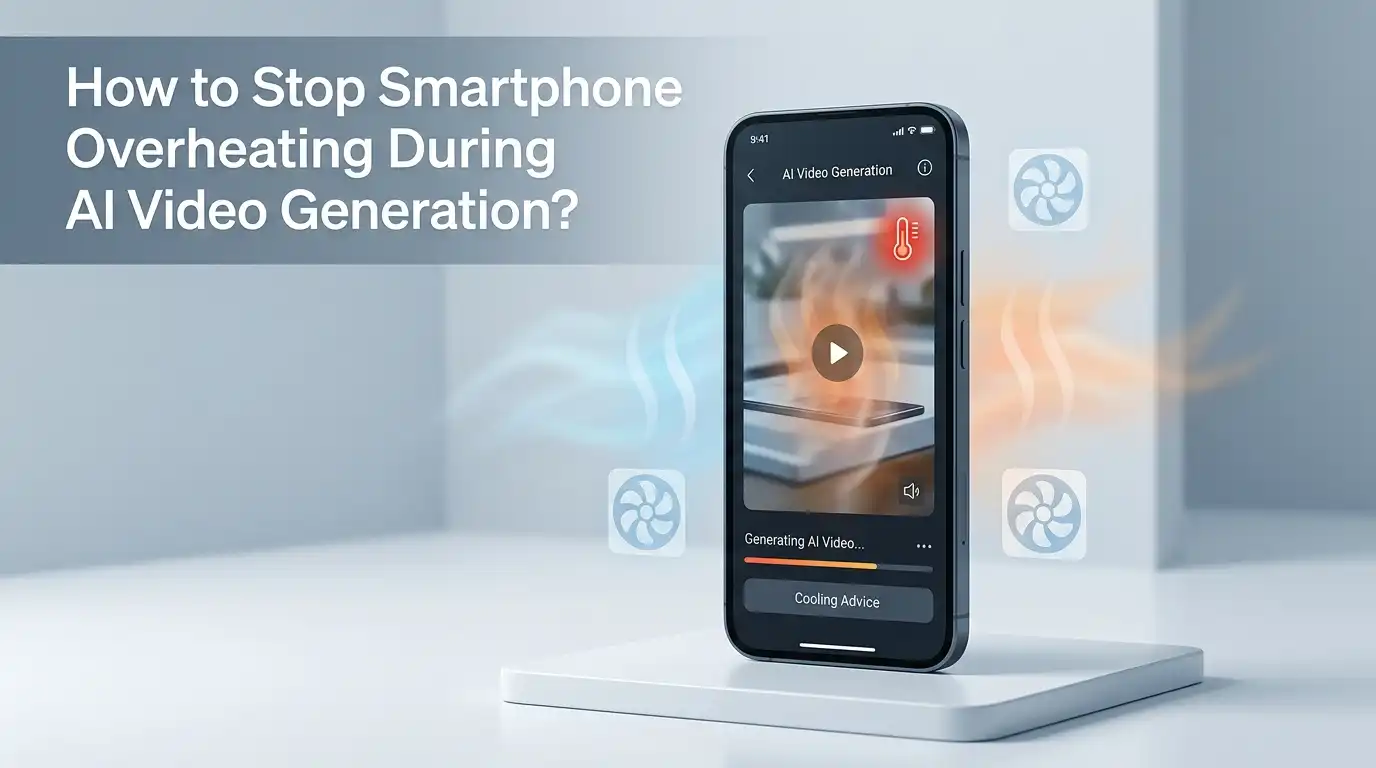
How to Stop Smartphone Overheating During AI Video Generation?
AI video generation apps like Sora, Runway, Pika, Kling, and Veo push your phone harder than almost any other task. Your processor, GPU, neural engine, and modem all fire up at once.
Within minutes, your handset can feel like a hot pancake in your palm. The screen dims, the app crashes, and your render fails halfway through.
This guide gives you clear, step by step fixes to keep your phone cool while creating AI videos. You will learn what causes the heat, how to stop it, and which cooling methods give the best results. Every tip below is practical and easy to apply today.
Key Takeaways
- Close background apps before you start a render. AI video tools need every drop of CPU and GPU power. Background apps steal resources and create extra heat for no reason.
- Never charge your phone while generating videos. Charging adds heat from the battery. Generating adds heat from the chip. Doing both at once is the fastest way to trigger thermal throttling.
- Remove the case during long AI sessions. Cases trap heat against the back of the phone. A bare phone cools 30 to 40 percent faster.
- Use cloud based AI video tools instead of on device models when possible. Cloud rendering moves the heavy work to a server. Your phone stays cool because it only handles the upload and preview.
- Lower your screen brightness and refresh rate. A bright 120Hz display can add 2 to 3 degrees Celsius on its own. Cutting brightness to 50 percent gives instant relief.
- Add active cooling like a clip on fan or Peltier cooler for long sessions. These accessories pull heat out of the back panel and let you generate videos for hours without throttling.
Why Your Phone Overheats During AI Video Generation
AI video generation is one of the heaviest tasks a phone can run. The app uses the CPU, GPU, and Neural Processing Unit (NPU) at the same time. It also pulls data from the cloud, which keeps the modem busy. All four chips produce heat in a small metal frame.
Modern phones use a single piece of aluminum or glass as a heatsink. When you push every chip at full speed, that heatsink fills up fast. The phone then throttles performance to protect itself. You see this as a sudden slowdown, a hot back panel, or a forced app close.
Knowing this helps you fight the cause, not just the symptom. Heat is not random. It comes from specific chips doing specific work. Reduce the load on those chips and the heat drops fast.
Close Every Background App Before You Start
Background apps are the silent killers of phone performance. Social media, email, music, and chat apps all keep small tasks running. Each one uses a tiny slice of CPU. Together they can eat 15 to 20 percent of your processor before you even open the AI app.
Swipe up and close everything before you launch your AI video tool. On Android, also visit Settings, Apps, and force stop the heaviest ones like Chrome, Instagram, and TikTok. On iPhone, double tap the home gesture and swipe each app away.
Pros: Free, instant, and gives a noticeable temperature drop within minutes.
Cons: You must repeat this every session. Some apps restart themselves in the background, especially on Android.
This single step often cuts heat output by 10 to 15 percent and lets your AI render finish before throttling begins.
Take Off the Phone Case During Generation
Phone cases protect your device from drops, but they act like a winter coat for heat. Silicone, leather, and rugged cases all trap warm air against the back panel. The metal or glass back is the main cooling surface, so blocking it slows heat escape.
Pop the case off before you start a long AI video render. Place the phone face up on a hard, flat surface like a wooden desk or a ceramic tile. Avoid soft beds, couches, or pillows, which insulate the device.
Pros: Free, takes five seconds, and works with every phone model. The cooling effect is immediate.
Cons: Your phone is more exposed to drops and scratches during use. You also need to remember to put the case back on after.
For heavy users, a thin plastic case with cooling cutouts offers a middle ground between protection and airflow.
Never Charge Your Phone While Generating Videos
Charging produces heat. Generating produces heat. Doing both at the same time is like running a heater while cooking on a stove in a small room. The battery temperature can climb past 45 degrees Celsius, which is the safety cutoff for most lithium ion cells.
If your battery is low, pause your work, charge to 60 or 70 percent, then unplug and start the AI render. Modern AI video apps use 5 to 15 percent battery per generation, so you have plenty of room.
Pros: Saves your battery health long term. Heat is the number one killer of lithium ion cells, so this habit extends your phone lifespan by months or years.
Cons: You need to plan ahead. Long sessions may force you to stop and recharge.
If you must charge, use a slow 5W or 10W charger instead of fast charging. Slow charging adds far less heat to the battery.
Use Cloud Based AI Video Tools Instead of On Device Models
Some AI apps run the model directly on your phone. Others send your prompt to a cloud server, which returns the finished video. Cloud based tools like Runway, Sora, Kling, and Pika do almost all the work on a remote GPU.
Switching to a cloud tool keeps your phone cool because it only handles the upload, preview, and download. The heavy compute happens far away. You can generate ten videos in a row and the phone stays warm at most.
Pros: Massive heat reduction. Faster render times since cloud GPUs are stronger than any phone chip. Works on older phones too.
Cons: Needs a stable internet connection. Often costs a monthly subscription. Some tools have privacy limits since your prompts go to a server.
For heavy creators, cloud AI is the single most effective fix on this list.
Lower Screen Brightness and Refresh Rate
Your display is one of the hottest parts of the phone during long sessions. A 6.7 inch OLED at full brightness draws 2 to 3 watts. That energy turns into heat under the glass.
Drop brightness to 40 or 50 percent and switch from 120Hz to 60Hz before you start. On iPhone, this is Settings, Display and Brightness. On Android, look in Settings, Display, Smooth display or similar.
Pros: Easy to do. Saves battery and cuts heat at the same time. No extra cost.
Cons: The screen looks slightly less smooth. Outdoor visibility drops if the sun is bright.
Most AI video apps do not need a high refresh rate to work. The render happens in the background, and 60Hz is plenty for previewing the result.
Turn On Airplane Mode or Limit Network Use
The cellular modem produces a surprising amount of heat, especially on 5G. If your AI app only needs Wi Fi, switch off mobile data. If it does not need either during the render, turn on airplane mode and use Wi Fi only.
For cloud AI tools, you obviously need internet. But for on device tools like Google Pixel Studio or Samsung Galaxy AI features, airplane mode works fine during generation.
Pros: Cuts modem heat by up to 50 percent. Stops background sync that slows the phone. Improves battery life.
Cons: You miss calls and messages during the render. Cloud AI tools will not work until you turn networking back on.
A simple trick is to enable airplane mode then turn Wi Fi back on. You get internet without the cellular heat.
Move to a Cool Room With Good Airflow
Room temperature has a huge effect on phone cooling. A phone in a 30 degree Celsius room will overheat much faster than the same phone in a 20 degree room. The phone cools by passing heat to the surrounding air, so cooler air pulls more heat out.
Avoid direct sunlight, hot cars, and warm laps. Sit near a window, a fan, or an air conditioner vent. Even a small desk fan blowing across the back of the phone cuts temperatures by 5 to 8 degrees.
Pros: Free if you already have a fan or AC. Works for every phone model. No app or setting changes needed.
Cons: Not always possible when traveling or working outside. AC use raises your power bill.
If you create AI videos often, set up a dedicated cool spot at home with steady airflow.
Use a Clip On Phone Cooler or Peltier Cooler
For serious creators, a clip on cooler is the best long term fix. These small devices stick to the back of your phone with a magnet or clamp. Some use a fan, others use a Peltier thermoelectric chip that can drop the back panel below room temperature.
Gaming brands and generic makers sell these widely. They plug into USB C or charge separately. Active coolers can let you run AI video generation for hours without any throttling at all.
Pros: Strongest cooling method available. Lets you push your phone to maximum performance. Works for gaming, streaming, and recording too.
Cons: Costs money. Adds bulk and weight. Some models are loud. Peltier coolers can cause condensation if used in humid rooms.
This is the go to fix for professional AI creators who run dozens of renders per day.
Update Your Phone Software and AI App
Phone makers release thermal updates often. A recent firmware patch may improve how your processor handles AI workloads. App developers also update their AI engines to use less power and produce less heat per render.
Open Settings, System, Software update on Android, or Settings, General, Software Update on iPhone. Then visit your app store and update the AI app itself.
Pros: Free and automatic once you start the update. Often improves speed and battery life along with thermals.
Cons: Updates take time and need a charged battery. Rare cases of new bugs can make heat worse, so check reviews before installing major updates.
Keeping software fresh is a low effort, high reward habit every smartphone user should follow.
Reduce Video Length and Resolution Settings
Most AI video apps let you choose length and resolution. A 10 second 1080p clip uses far more compute than a 5 second 720p clip. The longer and sharper the video, the harder your phone or the cloud server has to work.
Start with shorter, lower resolution drafts. Once you like the result, upscale or extend the final version. Many apps have an upscale feature that you can run separately when the phone is cool again.
Pros: Cuts render time and heat at the same time. Lets you experiment with prompts faster. Saves cloud credits if your tool charges by length.
Cons: Lower quality previews can mislead your creative choices. You may need to render twice if the upscale changes the look.
Treat short, low res renders as sketches and long, high res renders as final art.
Take Breaks Between Renders
Heat builds up over time. Even with every fix above, a phone running ten renders back to back will get hot. Give the device a 2 to 3 minute rest between each generation. Place it on a cool surface like a tile counter or a metal desk.
You can use this break to refine your next prompt, sip water, or stretch. Short pauses also reduce battery wear, since rapid heat cycles damage lithium ion cells over years.
Pros: Free and effective. Helps your battery last longer. Improves your creative workflow because you think more between attempts.
Cons: Slower output if you need many videos in a hurry. Requires patience and self discipline.
Think of it like rest between sets at the gym. Both you and your phone perform better with recovery time.
Monitor Phone Temperature With a Free App
You cannot fix what you cannot measure. Free apps like AIDA64, CPU X, or Cooling Master show real time CPU, battery, and ambient temperatures. Watch the numbers while you generate videos.
A safe range is below 40 degrees Celsius for the CPU and below 38 for the battery. Above 42 degrees, performance drops. Above 45, the phone may shut down to protect itself.
Pros: Gives you exact data instead of guessing. Helps you spot which fixes work best for your phone. Free or low cost.
Cons: The monitor app itself uses a small amount of CPU. Some readings are estimates rather than direct sensor values.
Once you learn your phone limits, you can plan AI sessions around them with confidence.
FAQs
Is it bad for my phone to overheat during AI video generation?
Yes. Repeated overheating damages the battery and shortens the lifespan of internal chips. Modern phones throttle performance to protect themselves, but long term heat exposure still wears parts down. Aim to keep the phone below 42 degrees Celsius during heavy use.
Why does my phone get so hot during AI video apps but not during gaming?
AI video uses the CPU, GPU, and neural engine all at full power, while most games mainly use the GPU. AI also keeps the modem busy if the tool is cloud based. More chips working at once means more heat.
Can I damage my phone by using AI video tools daily?
Daily use is fine if you follow cooling habits. Problems start when you ignore heat warnings, charge while rendering, or use the phone in hot rooms. Healthy habits let your device handle AI video work for years.
Do cooling cases really help with AI video generation?
Cooling cases with vents or built in fans help a little. Passive cooling cases that just claim better airflow help less than removing the case entirely. Active clip on fans work best, especially Peltier models.
Should I use my tablet or laptop instead of my phone for AI video?
If you have access to one, yes. Tablets and laptops have larger cooling systems and more battery. They handle AI video generation with far less heat. Phones are great for quick clips, but bigger devices win for long projects.
Does cloud AI video really stop phone overheating?
Mostly yes. The heavy compute happens on a remote server, so your phone stays cool. The only heat comes from the screen, modem, and a small amount of upload work. Cloud based tools are the easiest way to avoid phone heat completely.

Hi, I’m Pearl Standen, the voice behind The Web Utility. I’m a passionate tech enthusiast who loves exploring the latest gadgets, smart devices, and electronics that make everyday life easier. Through my website, I share honest, well-researched reviews of trending Amazon products to help you make smarter buying decisions.