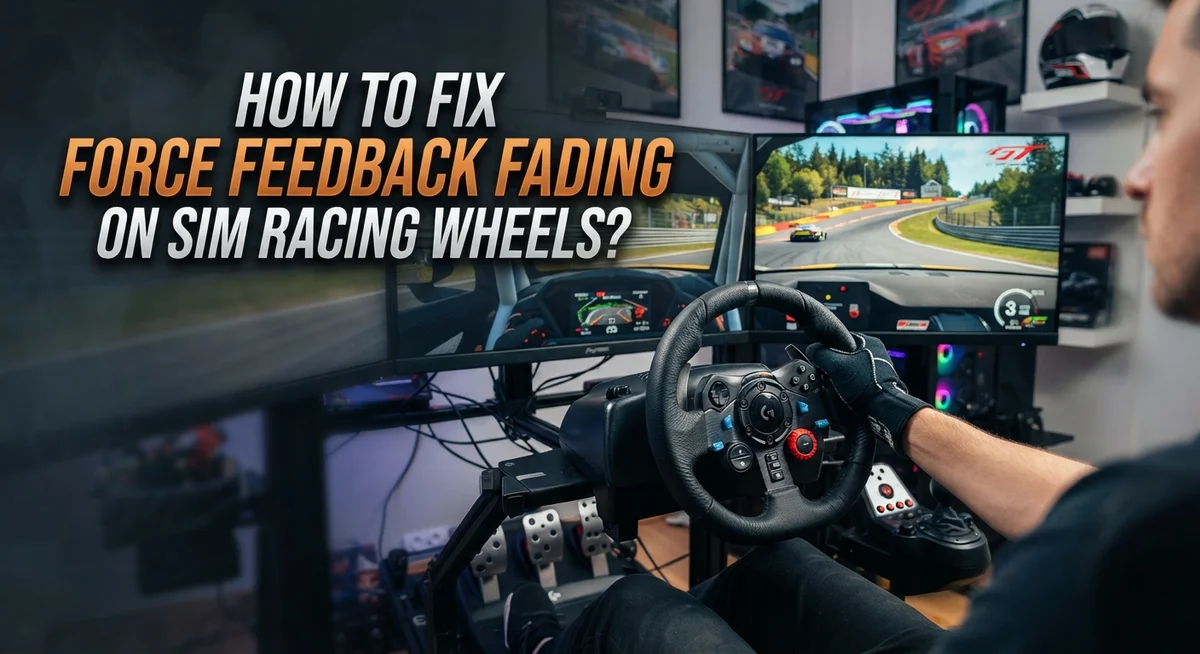
How To Fix Force Feedback Fading On Sim Racing Wheels?
You feel it happen mid corner. The wheel goes light in your hands. That strong, realistic force feedback suddenly fades away.
This is a common problem for sim racers. It can turn an exciting race into a frustrating guessing game.
The good news is that fading force feedback rarely means your wheelbase is broken. Most often, it points to something simpler. This could be a loose cable, outdated firmware, or wrong software settings.
Heat can also play a big role. A wheelbase working too hard in a poorly ventilated space can overheat and throttle its power.
In a Nutshell
- Check your two strength settings. Your wheelbase strength and in-game strength work together. Set your wheelbase to 85 to 100% first, then adjust the in-game setting after.
- Match your Wheel Force setting. This should align with your wheelbase’s maximum torque capability. A mismatch here often causes weak or fading feedback.
- Inspect your cables and connections. Loose USB plugs or worn cables can cause random fading during a race. A quick check can save you a lot of frustration.
- Keep firmware updated. Outdated firmware is a common but easily overlooked cause of inconsistent force feedback.
- Watch out for heat. Poor ventilation can lead to thermal throttling, which weakens your feedback over time. Give your wheelbase open space to breathe.
- Remember, fading is rarely permanent damage. Most causes are simple: connection, settings, or heat. Fixing these usually restores full strength.
Understanding Force Feedback Fading: Causes and Symptoms
Force feedback fading happens when your sim racing wheel gradually loses its strength during use. You notice the steering feels weaker or less responsive than it should be. This can occur suddenly mid corner or slowly fade over a session.
The main culprits behind fading are connection problems, software issues, and heat buildup. A loose USB cable might cause intermittent fading. Outdated firmware can make your wheelbase behave unpredictably. Poor ventilation around your wheelbase creates thermal stress that reduces feedback intensity.
Your wheelbase has a torque capacity, which is its maximum force output strength. When fading occurs, this capacity isn’t being fully utilized. The problem usually sits in one of three areas: how your equipment connects, what your software settings are, or environmental conditions around your wheel.
Fading rarely means your wheelbase is permanently broken. Most cases involve fixable issues you can address yourself. Connection integrity matters greatly. Even a partially loose plug can cause your force feedback to drop unexpectedly during intense racing moments.
Thermal throttling is another common cause. Your wheelbase contains electronics that generate heat during operation. Without proper airflow, these components reduce their output to protect themselves from overheating. This protection mechanism feels like fading force feedback to you as the driver.
Software plays an equally important role. Your wheelbase runs firmware that controls how it communicates with your PC. Outdated versions sometimes conflict with new game updates. Your in game settings also matter. Incorrect strength configurations prevent your wheelbase from delivering its full potential.
Understanding these causes helps you diagnose the exact problem. Once you identify whether it’s connection, software, or heat related, fixing it becomes straightforward.
Checking Cables and Connections for Loose or Faulty Contacts
Your USB cable and power connections are critical to stable force feedback. A loose plug or damaged wire can cause your wheel to lose strength suddenly during racing.
Start by inspecting the USB cable that connects your wheelbase to your computer. Look for any visible damage like cuts, fraying, or bent connectors. Wiggle the cable gently while your wheel is powered on. If the force feedback flickers or changes, you have found a connection problem.
Check where the cable enters your wheelbase. This connection point experiences the most stress during racing. Push the USB plug firmly into the port until you hear or feel it click. A partially inserted connector will cause intermittent fading.
Examine the power adapter connection next. This plug supplies the energy your wheelbase needs to generate strong force feedback. A loose power connection reduces available torque, making your feedback feel weaker than normal.
Test different USB ports on your computer. Some ports deliver more stable power than others. Try plugging your wheelbase into a different USB port to see if the fading stops. This simple test reveals whether your computer’s port is the culprit.
If you use a USB hub, connect your wheelbase directly to your computer instead. Hubs can introduce connection instability and power delivery problems.
Look for any visible corrosion or discoloration on the metal connector pins. Corrosion prevents proper electrical contact and causes fading. If you spot corrosion, gently clean the pins with a dry cloth.
Replace your cable if you find damage. A worn or damaged cable cannot maintain consistent power delivery to your wheelbase, resulting in unpredictable force feedback loss during your races.
Correctly Configuring Wheelbase Strength Settings
Your wheelbase strength setting acts as the foundation for all force feedback. This is the first place you should look when feedback feels weak or fades during racing sessions.
Start by opening your wheelbase software on your computer. Look for the strength or power slider. Most wheelbase software displays this as a percentage value. Set this to between 85 and 100 percent. This ensures your wheelbase operates at or near its maximum capability.
Why not max it out immediately? Some users prefer starting at 85 percent to avoid sudden, jarring movements during initial setup. You can always increase it further once you verify everything works correctly.
After adjusting the wheelbase setting, launch your racing game. This is where you configure the second strength setting: the in-game force feedback slider. This setting controls how strong the feedback feels specifically within that game. Do not skip this step.
The in-game setting should match what your wheelbase can physically deliver. Check your wheelbase specifications to find its maximum torque output. Then adjust the game’s “Wheel Force” or “Force Feedback Strength” setting accordingly. Most games display this as a percentage as well.
Here’s the key difference: Your wheelbase setting is the hardware ceiling. Your in-game setting is what the game actually uses within that ceiling. If your wheelbase is at 100 percent but your game setting is at 30 percent, you will only feel 30 percent of available feedback.
Test both settings together. Increase the in-game setting gradually while doing practice laps. You will quickly notice when feedback feels right for your driving style. This two-tier approach prevents overwhelming force feedback while keeping it strong and responsive.
Matching In-Game Force Feedback and Wheel Force Settings
Your wheelbase and in-game settings work together like a two-layer system. The wheelbase software controls what your hardware can physically do. The in-game settings then shape how strong that feedback feels during racing.
Start by setting your wheelbase strength to 85 to 100 percent. This gives your wheel maximum power to deliver. Don’t skip this step, as a low wheelbase setting limits everything else you do.
Next, launch your racing game and find the force feedback strength option. This is where you fine tune the feel for that specific game. Adjust it separately from your wheelbase setting. Many drivers make the mistake of thinking one setting controls everything. They don’t.
Here’s what happens when settings mismatch. If your wheelbase is at 50 percent but your game asks for 100 percent output, your wheel can’t deliver what the game wants. You’ll feel weak or inconsistent feedback. The opposite problem occurs too. A maxed out wheelbase with a low in-game setting wastes your wheel’s potential.
The goal is balance. Your in-game strength should match what your wheelbase can actually produce. Check your wheelbase specifications to see its maximum torque output. This number helps you understand what “100 percent” really means for your specific wheel.
Test your settings during a practice session before racing. Feel how the wheel responds through corners and over bumps. If feedback still feels weak, your connection or ventilation might be the real issue. Matching these two settings correctly prevents confusion when troubleshooting fading problems later.
Preventing Thermal Throttling Through Proper Ventilation
Heat buildup inside your wheelbase is one of the most overlooked causes of force feedback fading during long racing sessions. When your equipment gets too hot, it automatically reduces power output to protect internal components. This is called thermal throttling, and it happens silently without warning.
Proper ventilation is your first defense against this problem. Position your wheelbase in an open area where air can flow freely around it. Avoid placing it in enclosed spaces, cabinets, or against walls. Your wheelbase needs breathing room on all sides, especially around the motor and electronics.
Keep the area around your wheel setup clean and dust free. Dust buildup acts like insulation and traps heat inside. Wipe down your wheelbase regularly with a soft, dry cloth. Check the ventilation holes on your wheelbase casing. Make sure nothing blocks them.
Temperature matters more than you think. If your room is already warm, consider using a small fan nearby to improve air circulation. Point it toward your wheelbase setup, not directly at it. This helps dissipate heat without creating uncomfortable conditions for yourself.
Monitor your wheelbase temperature during practice sessions. If your force feedback starts fading after 30 to 45 minutes of use, thermal throttling is likely the culprit. Let your equipment cool down for 10 to 15 minutes before racing again.
During intense racing events, take short breaks every hour. This gives your wheelbase time to cool and prevents performance drops mid-race. Better ventilation means better force feedback consistency throughout your entire session.
Updating Firmware and Software for Optimal Performance
Firmware updates fix many force feedback issues you might experience. Your wheelbase software controls how the wheel communicates with your computer and games. Outdated firmware can cause connection problems, reduced feedback strength, and compatibility issues with newer racing titles.
Check your wheelbase manufacturer’s website regularly for new firmware versions. Most companies release updates every few months to improve performance and fix bugs. Download the latest version to your computer first, then follow the installation instructions provided by the manufacturer.
The update process is usually straightforward. Connect your wheelbase directly to your computer using a USB cable. Open the wheelbase software and look for an update option in the settings menu. The software will guide you through downloading and installing the new firmware. This typically takes five to fifteen minutes.
Keep your racing game software current as well. Game developers release patches that improve force feedback compatibility and stability. Outdated games may not communicate properly with newer wheelbase firmware versions. Update your racing title through its launcher or platform before testing your force feedback again.
After updating both wheelbase firmware and game software, restart your computer completely. This ensures all changes take effect properly. Don’t skip this step. A full restart clears temporary files and resets connections between your hardware and software.
Test your force feedback in a practice session after updating. The improvements should be noticeable right away. If fading continues, the issue likely involves your connection, ventilation, or in-game settings rather than outdated software.
Regular updates prevent many force feedback problems before they start. Set a reminder to check for new firmware every month or two.
Avoiding Common Setup Mistakes That Cause Fading
Force feedback fading often starts with setup mistakes that are easy to fix. The most common error happens when you don’t understand how your wheelbase and in-game settings interact with each other.
Your wheelbase has a maximum power output. Think of this as the ceiling for all force feedback strength. When you set your wheelbase software too low, you’re limiting what the wheel can do before the game even starts. Many users set this value too high instead, which causes the wheel to work harder than necessary and fade faster during long sessions.
The second layer is your in-game setting. This controls how much of that wheelbase power the game actually uses. A frequent mistake is setting both values to maximum. This creates excessive demand on your hardware and leads to thermal issues and connection problems.
Cable placement matters more than most people realize. Loose USB connections cause intermittent force feedback loss that feels like fading. Make sure your cable isn’t bent sharply or pinched behind furniture. Check the connection at both the wheelbase and your computer regularly.
Another setup mistake involves poor cable management around your rig. Cables running across hot surfaces or near your wheelbase can trap heat and cause problems. Keep cables organized and away from the wheelbase ventilation areas.
Dust accumulation around your setup reduces airflow significantly. Even small dust buildup on the wheelbase exterior restricts cooling. Wipe down your wheel setup weekly with a soft cloth.
Finally, avoid making multiple setting changes at once. Change one value, test it during a practice session, then adjust the next setting. This approach helps you identify which specific change caused fading issues. Small adjustments give you better control over your setup and prevent frustration.
Troubleshooting Persistent Force Feedback Issues
Force feedback fading during races can frustrate any sim racer. The good news is that most cases stem from fixable issues rather than permanent hardware damage. Understanding what causes persistent fading helps you solve the problem quickly.
Connection integrity is your first checkpoint. USB cables deteriorate over time or develop loose connections at plug points. Inspect both ends of your cable carefully. Wiggle the connector while your wheelbase is powered on. If force feedback suddenly returns or changes, you’ve found the culprit. Replace the cable with a quality alternative if damage appears visible.
Thermal throttling remains a silent force feedback killer. Your wheelbase reduces power output automatically when internal temperatures climb too high. This protection mechanism prevents component damage but feels like fading to you. Check if fading happens consistently after 30 to 45 minutes of racing. That timing pattern points directly to heat buildup. Ensure your wheelbase sits on a hard, stable surface with at least 6 inches of clearance on all sides.
Firmware mismatches between your wheelbase and racing software create persistent problems. Outdated firmware contains bugs that developers have already fixed. Visit your wheelbase manufacturer’s support page and download the latest version. Install updates on a clean computer with no other programs running.
Finally, verify your two layer strength setup once more. Set wheelbase strength first at 85 to 100 percent. Then adjust in-game force feedback strength separately. Many racers skip this two step process and wonder why fading persists.
Test your settings during a short practice session. Document what works and what doesn’t. This record helps you troubleshoot faster if issues return later.
Final Thoughts
Force feedback fading feels annoying, but most fixes are simple. You now know the main causes behind this problem.
Connection issues, heat buildup, and setting mismatches cause most fading problems. Fixing these three areas solves the issue for most sim racers.
Start with your cables and connections. Loose USB plugs create weak signals that cause fading during races.
Temperature control matters just as much as connections. Give your wheelbase room to breathe during long sessions. Heat buildup silently kills force feedback strength over time.
Your two tier strength setup needs regular checking. Wheelbase settings and in game settings must work together properly.
Firmware updates solve many hidden problems you might not notice right away. Manufacturers release updates specifically to fix force feedback bugs and glitches.
Set aside time each month to check for new updates. This small habit prevents bigger problems from developing later.
Testing your setup after each change confirms everything works correctly. Don’t skip this step, even when changes seem minor.
Remember that fading rarely means your wheelbase broke completely. Most cases involve fixable settings, connections, or thermal issues instead.
Patience helps when troubleshooting these problems. Work through each possible cause one step at a time.
Your racing experience improves once you fix these fading issues properly. Strong, consistent force feedback makes every race feel more realistic and engaging.
Keep this guide handy for future reference. Force feedback problems can return, especially after software updates or hardware changes.
Good maintenance habits prevent most issues before they start. Check connections, monitor temperature, update firmware, and verify your settings regularly. Your sim racing setup deserves this small amount of ongoing care and attention.
Frequently Asked Questions
Why does my force feedback suddenly feel weak mid-race?
Force feedback fading during races usually points to three main culprits. Your USB connection might be loose or damaged. Heat buildup in your wheelbase can trigger thermal throttling, which automatically reduces power output to protect the motor. Outdated firmware between your wheelbase and game software can also cause this issue.
Start by checking your USB cable connections at both ends. Make sure nothing blocks airflow around your wheelbase. Then verify your firmware is current on both your wheelbase software and racing game.
Can I fix force feedback fading without replacing my wheel?
Yes, most fading issues are fixable without buying new hardware. The problem rarely means your wheelbase is broken. Instead, it signals a connection, heat, or settings problem that you can address.
Begin with your two tier strength setup. Set your wheelbase software to 85 to 100 percent power. Then adjust your in game strength separately based on what that game recommends. This layered approach prevents one setting from overpowering the other.
How does temperature affect my force feedback strength?
Heat is a silent force feedback killer. When your wheelbase gets too hot, it automatically reduces power output to prevent motor damage. Long racing sessions without proper ventilation cause this thermal throttling.
Position your wheel in a well ventilated area. Keep your rig clutter free so air flows freely around the wheelbase. During extended sessions, take breaks to let the motor cool down. Proper airflow makes a real difference in maintaining consistent feedback throughout your race.
What’s the difference between wheelbase strength and in game strength settings?
These two settings work together, not against each other. Your wheelbase software controls the maximum power your motor can deliver. Your in game setting then uses that maximum as its ceiling.
Think of it this way: wheelbase strength is your hardware’s capacity. In game strength determines how much of that capacity the game actually uses. Both must be configured correctly for smooth, consistent feedback.

Hi, I’m Pearl Standen, the voice behind The Web Utility. I’m a passionate tech enthusiast who loves exploring the latest gadgets, smart devices, and electronics that make everyday life easier. Through my website, I share honest, well-researched reviews of trending Amazon products to help you make smarter buying decisions.