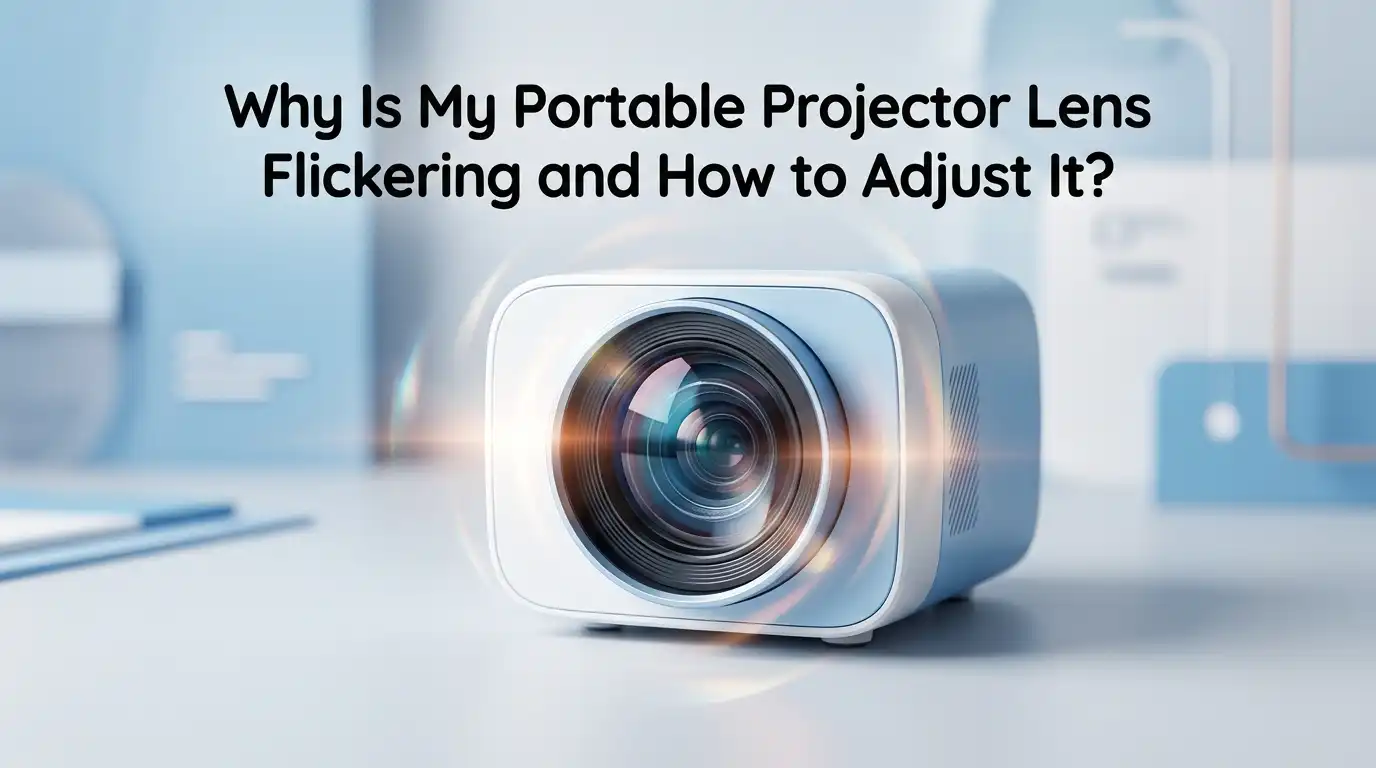
Why Is My Portable Projector Lens Flickering and How to Adjust It?
Have you ever sat down for movie night, hit play, and watched your projector image blink like a broken light bulb? That flicker can ruin a great evening fast.
A flickering portable projector lens is one of the most common complaints from home users, gamers, and travelers who rely on these compact devices.
The good news is that most flickering issues have simple causes. Loose cables, weak power sources, dirty lenses, wrong refresh rates, and overheating top the list. You do not need a technician for most fixes. You just need the right steps in the right order.
Key Takeaways
- Loose or damaged cables cause most flickering problems. Always check your HDMI, USB-C, or VGA connection first before anything else.
- Refresh rate mismatch between your source device and projector makes the image stutter. Set both to the same Hz, usually 60Hz for standard video.
- Power supply issues trigger flicker on battery powered units. Plug directly into a wall outlet, and avoid cheap power strips or low watt USB chargers.
- Overheating forces the projector to dim and brighten in cycles. Clean the air vents and give the unit breathing room on a hard, flat surface.
- A dying LED or lamp module flickers as it nears end of life. Most portable projectors use LEDs rated for 20,000 to 30,000 hours, but cheap units fail sooner.
- Firmware bugs and wrong picture settings also cause flicker. Update the firmware and reset the picture mode to factory defaults if other fixes fail.
What Does Projector Lens Flickering Actually Mean?
Flickering describes a rapid change in screen brightness or image stability. Your projector lens itself rarely flickers. The light source behind the lens, or the signal feeding the image, is the real culprit. Many users blame the lens because that is where they see the problem.
There are three main types of flicker. Brightness flicker makes the whole image pulse darker and lighter. Signal flicker shows black bars, color glitches, or full screen drops. Refresh flicker looks like fast horizontal lines or a shimmering effect across motion.
Knowing which type you have helps you skip to the right fix. Watch your projector for thirty seconds and note the pattern. Write down when it happens, such as during videos, games, or idle menus. This detective work saves time later.
Check Your Cables and Connections First
Loose cables cause more than half of all projector flicker complaints. A wiggling HDMI plug breaks the digital signal for a split second, and your image blinks. Unplug every cable, blow out any dust, and plug them back in firmly.
Look at the cable jacket for kinks or cuts. Try a different HDMI cable if you have one. Cheap cables fail often, especially at 4K resolution. High speed HDMI 2.0 or 2.1 cables handle modern signals better than older ones.
Pros of checking cables first: It costs nothing, takes two minutes, and solves most problems instantly. Cons: A bad cable may still appear fine to the eye, so you sometimes need to swap it out to confirm. Keep a spare known good cable in your projector bag for fast testing.
Inspect the Power Source and Battery
Portable projectors run on either a wall adapter or a built in battery. Both can cause flicker if power is weak or unstable. A low battery often dims the lamp and creates a slow pulse you might mistake for video flicker.
Plug your projector straight into a wall outlet. Skip power strips, extension cords, and car inverters during testing. If the flicker stops when plugged in, your battery or charger is the problem. Replace the charger with one that matches the original wattage.
Pros of fixing the power source: Stable power solves flicker and protects your hardware long term. Cons: A proper replacement adapter can cost twenty to fifty dollars, and battery packs are not always user replaceable. Always match the voltage and amperage exactly.
Match the Refresh Rate Between Devices
Your projector and your source device must speak the same language. If your laptop outputs 120Hz but the projector only handles 60Hz, you get flicker, tearing, or a blank screen. Open your device display settings and lower the refresh rate to 60Hz.
On Windows, go to Settings, Display, Advanced Display, and pick 60Hz. On Mac, open System Settings and choose Displays. On streaming sticks, dig into the video output menu and set the resolution to 1080p at 60Hz for safety.
Pros of adjusting refresh rate: It is free, reversible, and works for almost every brand. Cons: Gamers lose smoothness if their projector caps at 60Hz. Check your projector manual for the highest supported refresh rate before changing settings.
Clean the Lens and Air Vents
Dust on the lens does not cause flicker directly, but dust inside the vents does. Blocked vents lead to overheating, and overheating triggers automatic dimming. That dimming looks just like a flicker.
Turn off and unplug the projector. Let it cool for thirty minutes. Use a soft microfiber cloth on the lens and a can of compressed air for the vents. Never use water, alcohol, or paper towels on the lens coating. Hold the air can upright and use short bursts.
Pros of cleaning: Improves brightness, extends lamp life, and removes a common flicker cause. Cons: You cannot reach deep internal dust without opening the case, which voids most warranties. Stick to surface cleaning every two to three months.
Fix Overheating Problems
Portable projectors heat up fast because they pack big lamps into tiny cases. Once the internal temperature crosses a safe limit, the projector throttles brightness to protect itself. This shows up as flicker, dimming, or sudden shutdowns.
Place your projector on a hard, flat surface with at least six inches of clearance on every side. Skip soft beds, blankets, and pillows because they block airflow. Run the projector in eco mode during long sessions to cut heat output.
Pros of fixing heat issues: Longer lamp life, quieter fan noise, and stable images. Cons: Eco mode reduces brightness, which hurts daylight viewing. Consider a small external USB fan aimed at the vents for marathon movie nights.
Update the Projector Firmware
Many portable projectors run Android TV or a custom operating system. Outdated firmware causes bugs, including flicker during HDR playback or Bluetooth audio sync. Check for updates every few months.
Open the projector menu, go to Settings, then About or System Update. Connect to Wi-Fi and let the device search. Download any update, and do not unplug the projector during installation. A broken update can brick your unit.
Pros of firmware updates: They fix known bugs, add features, and improve compatibility with new streaming apps. Cons: Some updates introduce new problems, and rollback is rarely allowed. Read user forums before installing a brand new firmware version.
Adjust the Picture and Color Settings
Wrong picture settings cause subtle flicker that looks like brightness pulsing. Dynamic contrast modes rapidly adjust brightness based on the scene, and on cheaper projectors this looks like flicker. Turn it off.
Go to the picture menu and find Dynamic Contrast, Adaptive Brightness, or Eco Adaptive. Switch them to Off. Set the picture mode to Standard or Movie instead of Vivid or Dynamic. Then lower the brightness slightly if the image still pulses.
Pros of adjusting picture settings: Free, fast, and reversible at any time. Cons: You may lose some perceived contrast, especially in dark scenes. Write down your original settings before you change anything, so you can return to them easily.
Test With a Different Source Device
Sometimes the projector is fine and the source device is broken. Connect a different phone, laptop, or streaming stick to test. If flicker disappears with the new source, the original device is the issue.
Try playing a local video file from a USB drive plugged into the projector. This bypasses streaming apps, Wi-Fi, and external devices entirely. A clean USB playback test isolates the projector from every other variable in your setup.
Pros of source testing: Confirms exactly where the problem lives, saving you from replacing the wrong part. Cons: Requires a second device, which not everyone has handy. Borrow a friend’s streaming stick for ten minutes if needed.
Check the Projector Lamp or LED Module
Lamps and LED modules wear out over time. A dying lamp flickers for days or weeks before failing completely. If your projector is over two years old and used often, the lamp may be the cause.
Look at the menu for a Lamp Hours counter. Most portable LED projectors are rated for 20,000 to 30,000 hours, but cheap units fail at 5,000 hours. If your hours are high and flicker started recently, the lamp is likely the cause.
Pros of replacing the lamp: Restores full brightness and stops flicker permanently. Cons: Most portable projectors have sealed LED modules that cannot be swapped by users. Contact the manufacturer about repair options before buying a new projector.
Try a Factory Reset
When nothing else works, a factory reset clears every setting and software conflict. This is the nuclear option but often solves stubborn flicker caused by hidden software bugs. Back up any saved content first.
Find Factory Reset in the system menu. Confirm the warning prompt and wait for the projector to restart. Set up the projector again from scratch, and test before installing any apps. If flicker is gone after the reset, an app or setting was the cause.
Pros of factory reset: Cures software based flicker that no other fix touches. Cons: You lose all settings, saved Wi-Fi passwords, and installed apps. Take photos of your custom settings before starting so setup is faster afterward.
When to Contact Support or Replace the Unit
If you tried every step and the flicker continues, the problem is likely hardware. Internal capacitors, the LED driver board, or the main chipset can all fail. These repairs cost almost as much as a new projector.
Contact the manufacturer first if your unit is under warranty. Provide a short video of the flicker, your serial number, and proof of purchase. Most brands offer a free repair or replacement within the first twelve months.
Pros of professional repair: Saves money on warranty units and avoids electronic waste. Cons: Out of warranty repairs are rarely worth it on budget projectors under three hundred dollars. Compare repair quotes against the price of a new model before deciding.
How to Prevent Future Flickering Problems
Prevention beats troubleshooting every time. Store your projector in a cool, dry place and never in a hot car. Heat damages internal parts and shortens lamp life.
Use a surge protector to guard against power spikes. Clean the vents every two months with compressed air. Turn the projector off properly using the remote, never by pulling the plug. Proper shutdown lets the cooling fan finish its cycle.
Pros of prevention habits: Extends the projector lifespan by years and keeps the image stable. Cons: Takes a small amount of time and discipline each month. Set a calendar reminder to clean and check your projector every sixty days.
FAQs
Why does my projector flicker only during movies and not menus?
Movies use different refresh rates than menus. Many films play at 24Hz, while menus run at 60Hz. The projector switches between rates, and a weak HDMI cable or older device cannot keep up. Try a new cable or set your streaming device to a fixed 60Hz output.
Can a low battery cause projector lens flicker?
Yes, a low battery causes brightness dips that look like flicker. The projector lowers lamp power to save energy as the battery drains. Plug the unit into the wall and see if the flicker stops within a minute or two.
Is projector flicker harmful to my eyes?
Long exposure to flicker can cause headaches, eye strain, and fatigue. Children and people with migraines are especially sensitive. Fix the flicker quickly or take frequent breaks during viewing. Do not ignore the problem just because the image is still visible.
How often should I clean my portable projector?
Clean the lens and vents every two to three months for normal use. If you use the projector outdoors or in a dusty room, clean monthly. Always power down and unplug the unit before cleaning, and never spray liquid directly on any surface.
Why does my new projector flicker right out of the box?
A brand new projector with flicker usually has a defective LED module or a firmware bug. Update the firmware first, then contact the seller for a return if the problem stays. Do not waste weeks troubleshooting a unit still under return policy. Most retailers give thirty days for a full refund.

Hi, I’m Pearl Standen, the voice behind The Web Utility. I’m a passionate tech enthusiast who loves exploring the latest gadgets, smart devices, and electronics that make everyday life easier. Through my website, I share honest, well-researched reviews of trending Amazon products to help you make smarter buying decisions.