Why Is My Wireless Lavalier Microphone Picking Up Radio Interference Indoors?
You set up your wireless lavalier mic, hit record, and then you hear it. A faint buzz. A burst of static. Sometimes even a snippet of a radio station bleeding into your audio. It feels frustrating, especially indoors where you expected things to be quiet and controlled.
The good news is simple. Radio interference indoors is almost always fixable. Your room is full of invisible radio signals from routers, phones, LED lights, and dozens of other devices.
Your mic picks some of these up and turns them into noise. Once you understand why this happens, you can stop it fast.
Key Takeaways
- Most indoor interference comes from nearby electronics. WiFi routers, smartphones, LED lights, and microwave ovens all flood your room with radio signals. Your mic catches these and converts them into buzz or static.
- The lav cable often acts like an antenna. A long, thin, or low quality cable can pick up stray radio energy. Shortening it or adding a ferrite choke usually solves this fast.
- Frequency choice matters a lot. A 2.4 GHz mic fights with your WiFi for space, while UHF mics face TV signal crowding. Scanning for a clean channel removes most conflicts.
- Antenna placement and distance change everything. Keeping a clear line of sight, raising antennas, and reducing distance between transmitter and receiver cut down dropouts and noise.
- Squelch settings filter weak noise. Setting squelch correctly tells your receiver to mute background radio junk instead of passing it to your audio.
- Cheap gear has weak shielding. Budget mics struggle to reject outside signals. Sometimes the real fix is better filtering, proper grounding, or a more capable system.
What Radio Interference Actually Means For Your Lav Mic
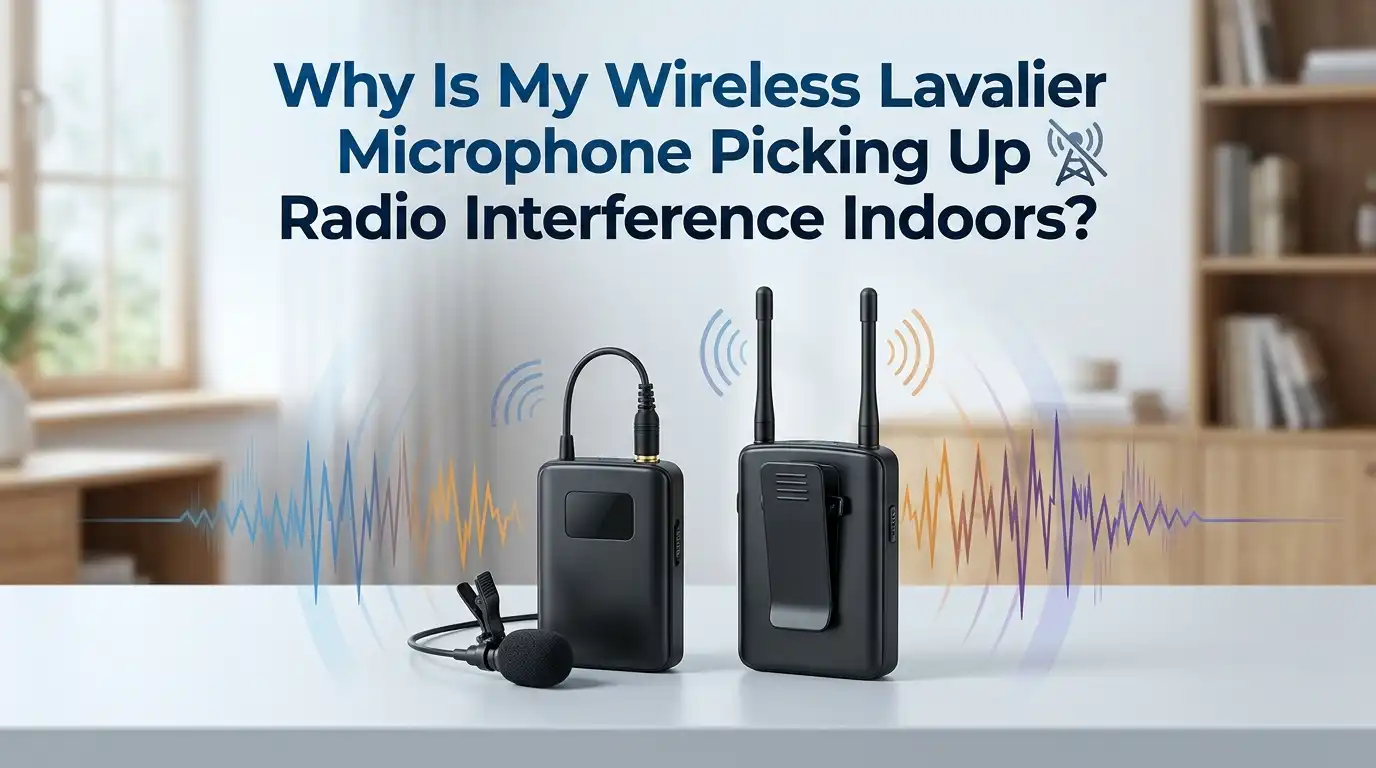
Radio interference happens when unwanted radio signals enter your microphone system and mix with your real audio. Your wireless lav mic sends sound through the air as a radio signal. The receiver listens for that exact signal and turns it back into audio.
The problem starts when other radio sources transmit on or near your mic frequency. Your receiver cannot always tell the difference. It grabs the extra energy and adds it to your sound. You then hear hiss, buzz, clicks, or static.
Indoors makes this worse. Walls bounce signals around, and you sit close to many electronic devices. Understanding this helps you treat the cause, not just the symptom. Once you know what your mic is hearing, you can remove or avoid that source quickly.
Why Indoor Spaces Cause More Interference Than Outdoors
You might expect indoors to be quieter and safer for recording. In reality, indoor rooms often create more interference than open outdoor areas. The reason is simple. Indoor spaces pack many radio devices into a small area.
Your home or office holds routers, smart TVs, phones, laptops, baby monitors, and smart bulbs. Each one transmits radio energy. Walls and metal surfaces reflect these signals, creating a messy radio environment.
This reflection problem is called multipath interference. The signal bounces off walls and arrives at your receiver from several directions at once. These copies clash and cancel each other, causing dropouts and noise.
Outdoors, signals spread out and fade away. Indoors, they bounce and build up. That is why your clean outdoor shoots can turn noisy the moment you step inside.
How To Identify The Source Of The Interference
Before you fix anything, you need to find the source. Guessing wastes time. A simple test process points you to the real problem fast. Start by turning off nearby electronics one at a time.
Switch off your WiFi router, then your phone, then LED lights, and listen after each step. When the noise stops, you have found your culprit. This method costs nothing and works well.
Next, test the mic in a different room or location. If the noise disappears, the source is tied to that specific space. If it follows you everywhere, the issue likely lives in your mic, cable, or receiver.
Write down what you find. Knowing whether the problem is the room, the gear, or a single device tells you exactly which fix to apply next. This saves hours of frustration.
Check And Replace Your Lavalier Cable First
The lav cable is the most common hidden cause of interference, yet people often overlook it. A thin or damaged cable acts like a small antenna. It picks up stray radio signals and feeds them straight into your transmitter.
Start by inspecting the cable for cracks, kinks, or loose connectors. Wiggle it gently while listening. If the noise changes, the cable is faulty. Replace it with a properly shielded one.
Shielded cables block outside radio energy. They wrap the signal wire in a metal layer that absorbs interference before it reaches your audio. This single change fixes many buzzing problems instantly.
Keep cables as short as possible. Coil up extra length neatly rather than letting it dangle. A long, loose cable collects more interference. A short, tidy, shielded cable stays clean and quiet.
Pros: cheap, fast, and often a complete fix.
Cons: a quality shielded cable costs more, and you may need to test a few to find the best one.
Move Your Receiver And Antennas For A Clear Signal Path
Where you place your receiver matters more than most people think. A blocked or badly positioned antenna invites noise and dropouts. Always aim for a clear line of sight between the transmitter and receiver.
Keep the receiver within view of the person wearing the mic. Walls, metal cabinets, and human bodies block radio signals. Each obstacle weakens your wanted signal and lets noise creep in.
Raise your antennas off the floor and away from metal. Mounting them higher reduces reflections and improves reception. Point antennas upward in a slight V shape for the best coverage.
Keep the receiver away from other electronics. Do not stack it on top of a router or laptop. Give it space. A clear, elevated, isolated receiver position dramatically lowers your indoor interference.
Pros: free to do, immediate improvement, no new gear needed.
Cons: not always possible in tight rooms, and may require creative mounting.
Scan And Switch To A Clean Frequency Channel
Your mic transmits on a specific frequency. If another device uses that same frequency, you get interference. The fix is to find an empty channel and move to it. Most modern wireless mics include a scan feature.
Run the scan function on your receiver. It checks the available frequencies and shows you which ones are busy. Then it suggests a clear channel. Select that channel and sync your transmitter to match.
Rescan every time you move to a new room or building. The radio environment changes from place to place. A channel that was clean yesterday may be crowded today.
For UHF mics, avoid frequencies used by local TV stations. For 2.4 GHz mics, the scan helps you dodge busy WiFi traffic. Regular scanning keeps you ahead of conflicts.
Pros: highly effective, built into most systems, quick to perform.
Cons: very cheap mics may lack a scan feature, forcing manual trial and error.
Understand The Frequency Band Your Mic Uses
Not all wireless mics work the same way. The frequency band your mic uses shapes how much interference you face indoors. The two common bands are UHF and 2.4 GHz. Each has clear strengths and weaknesses.
UHF mics use TV broadcast frequencies. They offer many channels and strong range. However, they share space with TV stations and other licensed users, so coordination matters in busy areas.
The 2.4 GHz band is the same one your WiFi and Bluetooth use. This band gets crowded fast indoors. Heavy WiFi traffic, phones, and smart devices all fight for the same space, raising your interference risk.
Knowing your band helps you predict problems. A 2.4 GHz mic in a WiFi heavy office needs more careful setup than a UHF mic in a quiet room.
Pros of knowing your band: smarter buying and setup decisions.
Cons: you cannot change a mic’s band, only manage around it.
Reduce WiFi And Bluetooth Conflicts In The Room
If you use a 2.4 GHz mic, your WiFi router is likely your biggest enemy. Both compete for the same airspace. Reducing this conflict cleans up your audio fast. Start by moving your mic away from the router.
Place at least a few feet of distance between your mic system and any router or access point. Distance weakens the WiFi signal reaching your receiver and lowers interference.
Switch your router to the 5 GHz band when possible. This frees up the 2.4 GHz space for your mic. Many modern routers run both bands at once, so this change is easy.
Turn off Bluetooth on nearby phones and tablets during recording. Bluetooth hops across the 2.4 GHz band and adds noise. Fewer active devices means a cleaner signal for your mic.
Pros: free, fast, and effective for 2.4 GHz systems.
Cons: may inconvenience others using the WiFi, and not relevant for UHF mics.
Set The Squelch Level Correctly
Squelch is a feature that tells your receiver when to mute. It blocks weak radio noise from reaching your audio. A correct squelch setting filters out background junk while keeping your real signal. Many people set this wrong.
When squelch is set too low, the receiver passes through weak noise and static. When set too high, it can cut off your actual mic signal. You want the sweet spot in between.
Set the squelch just above the background radio noise level. Walk to the farthest point you will use the mic, then adjust squelch until the noise mutes but your voice stays clear.
Test the setting before you record. Speak while moving around the room. If your audio drops out, lower the squelch slightly. A well tuned squelch stops most low level interference.
Pros: built into most systems, no extra cost, targets noise directly.
Cons: set too high and you lose range; budget mics may lack squelch control.
Add Ferrite Chokes To Block Interference
A ferrite choke is a small clip that snaps around your cable. It blocks high frequency radio noise from traveling along the wire. This tiny tool solves stubborn interference that other fixes miss. It works by absorbing the unwanted radio energy.
Clip the ferrite choke around your lav cable close to the transmitter. The cable often acts as an antenna for stray signals. The choke stops that radio energy before it reaches your electronics.
You can add a choke to both the mic cable and any connecting cables. Place them near the connectors for the strongest effect. They are cheap and easy to fit.
Ferrite chokes work best against buzzing and humming caused by RF pickup. If your noise comes from the cable rather than the air, this is often the perfect fix.
Pros: very cheap, easy to attach, effective against cable borne noise.
Cons: does not help with frequency conflicts or weak signal issues.
Fix Grounding And Power Related Noise
Sometimes the buzz you hear is not radio interference at all. It comes from poor electrical grounding. A ground loop creates a steady hum that sounds like interference. This happens when devices connect to different power outlets.
Test for this by plugging your receiver and recorder into the same power strip. A shared ground often removes the hum instantly. This simple step solves many mystery buzzes.
Avoid running your audio cables alongside power cables. Power lines radiate electrical noise. Cross them at right angles instead of laying them parallel for long stretches.
Battery powered setups avoid most grounding problems. If your mic and recorder both run on batteries, ground loops cannot form. This is why field recordists love battery gear.
Pros: free or low cost, removes hum that other fixes ignore.
Cons: requires some testing to confirm, and rewiring power can be inconvenient.
Upgrade Or Adjust Low Quality Gear
Sometimes the real problem is the gear itself. Very cheap wireless lav mics use weak components. They lack strong shielding and filtering, so they pick up far more interference. No setting will fully fix a poorly built system.
Budget mics often miss key features like frequency scanning, squelch control, and true diversity reception. True diversity uses two antennas to keep the signal strong even when one path is blocked. This greatly reduces dropouts indoors.
If you have tried every other fix and still hear noise, your gear may be the limit. A system with better shielding and diversity reception performs far better in busy indoor spaces.
Match your gear to your environment. A simple mic works fine in a quiet home. A crowded studio or office needs a more capable system to stay clean.
Pros: solves problems that no setting can fix, future proofs your work.
Cons: costs money, and you may need to learn a new system.
Build A Reliable Indoor Recording Routine
Fixing interference once is good. Stopping it from coming back is better. A simple pre recording checklist keeps your audio clean every time. Build the habit and you will rarely face surprises.
Before each session, scan for a clean channel, check your cable and connectors, and confirm your antenna placement. These three steps take under two minutes and prevent most problems.
Keep your batteries fresh. Weak batteries lower transmitter power, which raises your noise floor and invites interference. Always start with charged or fresh batteries.
Do a short test recording and listen back with headphones. Catching noise before you record the real thing saves you from re shoots. A steady routine turns interference from a constant worry into a rare event.
Pros: prevents problems before they start, builds confidence and consistency.
Cons: takes a little discipline to follow every single time.
Frequently Asked Questions
Why does my lav mic only buzz when I touch the cable?
This points to a cable or grounding issue, not airborne radio interference. Your body changes the way the cable picks up stray signals. Replace the cable with a shielded one and add a ferrite choke near the transmitter. Check your grounding too, since touch sensitive buzzing often comes from electrical faults rather than radio sources.
Can WiFi really interfere with my wireless microphone?
Yes, especially with 2.4 GHz mics. WiFi uses the same frequency band, so they compete directly. Heavy WiFi traffic crowds the airspace and adds noise to your audio. Move your mic away from the router, switch your router to the 5 GHz band, and turn off Bluetooth on nearby devices to reduce conflicts.
Is interference worse indoors than outdoors?
Often, yes. Indoor rooms pack many radio devices into a small space. Walls and metal surfaces bounce signals around, creating multipath interference. Outdoors, signals spread out and fade naturally. This is why a mic that works perfectly outside can suddenly pick up noise the moment you bring it inside a busy room.
What is squelch and should I change it?
Squelch tells your receiver when to mute weak radio noise. Set too low, it passes static through. Set too high, it cuts your real signal. Adjust it just above the background noise level for the cleanest result. Most of the time the factory setting works, but raising it slightly can remove stubborn low level interference.
Will a more expensive mic fix all interference?
Not always, but it helps a lot. Better systems include stronger shielding, frequency scanning, squelch control, and true diversity reception. These features reject far more interference than budget gear. If you have tried every setup fix and still hear noise, upgrading to a more capable system may be the only complete solution.
How do I find which device is causing the noise?
Turn off nearby electronics one at a time and listen after each. When the noise stops, you found the source. Common culprits include WiFi routers, LED lights, microwaves, and smartphones. You can also test the mic in a different room. If the noise disappears, the problem is tied to that specific space rather than your gear.

Hi, I’m Pearl Standen, the voice behind The Web Utility. I’m a passionate tech enthusiast who loves exploring the latest gadgets, smart devices, and electronics that make everyday life easier. Through my website, I share honest, well-researched reviews of trending Amazon products to help you make smarter buying decisions.