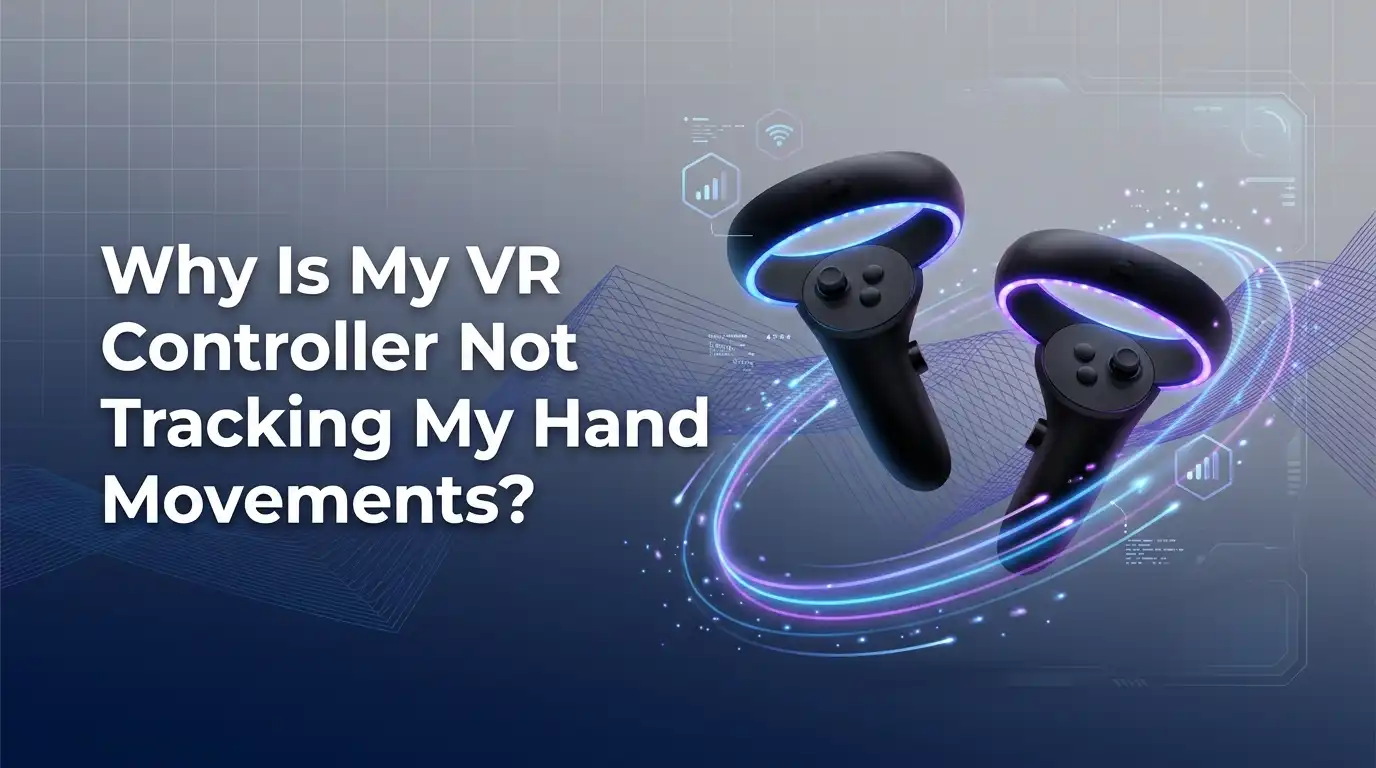
Why Is My VR Controller Not Tracking My Hand Movements?
Your VR controller should follow every flick, swing, and grab you make. When it stops doing that, your whole experience falls apart.
Suddenly your hands float near your face, your sword swings register late, and your arrows fly nowhere near the target. It feels broken. It feels expensive. And it feels deeply annoying when you just want to play.
Here is the good news. Most VR controller tracking problems come from simple causes. You can fix the majority of them in a few minutes without any tools.
Key Takeaways
- Lighting matters most. Your headset uses cameras to see your controllers. Too much light, too little light, or harsh sunlight all break tracking. Aim for a bright, evenly lit room with no direct sun.
- LED lights and reflective surfaces are silent killers. Christmas lights, RGB strips, mirrors, and glossy TVs confuse the cameras. Turn them off or move away from them.
- Dirty cameras cause blurry tracking. A simple fingerprint or smudge on your headset lens can make controllers drift or freeze. Clean the lenses with a soft, dry cloth.
- Weak batteries cause sudden tracking drops. Low power makes controllers stutter or disappear. Swap in fresh batteries as one of your first tests.
- Software fixes solve the rest. Restarting, re pairing, updating firmware, and adjusting tracking frequency clear up most remaining glitches.
- A factory reset is your last resort. It works, but it erases your setup, so try everything else first.
How VR Controller Tracking Actually Works
Your headset does the tracking, not your controller. This surprises many people. The cameras on the front and sides of your headset watch the world around you. They look for the bright ring or sensor lights on your controllers. When the cameras see those lights clearly, your controller follows your hand perfectly.
This system is called inside out tracking. It needs a clear view to work. Your controller also has a small motion sensor inside, but that sensor only guesses position when the cameras lose sight. That guess is why your hands sometimes float into the air when you reach behind your back.
Understanding this one fact changes everything. Most tracking problems are really vision problems. The cameras either cannot see the controller, or they see something that fools them. Once you think like the cameras, the fixes make sense.
Check Your Room Lighting First
Lighting is the number one cause of bad tracking. Your headset cameras need balanced light to see your controllers. Too dark, and the cameras cannot find the controller lights. Too bright, and the glare washes everything out. Both extremes break tracking instantly.
Start with a simple test. Turn on a normal ceiling light or two lamps. Make the room bright enough to read a book comfortably, but not blindingly bright. Avoid direct sunlight through windows, since sunlight overwhelms the cameras. Close your curtains or blinds if the sun hits your play space.
Try to spread light evenly around the room. A single bright lamp on one side often causes one controller to track worse than the other. Players report that uneven lighting makes the controller nearest the light go crazy.
Pros: Free, instant, and fixes a huge share of problems.
Cons: You may need to rearrange lamps or change when you play.
Remove LED Lights, RGB Strips, and Holiday Lights
This one catches almost everyone. Small lights confuse your headset cameras badly. Christmas tree lights, LED strips, RGB gaming setups, and smart bulbs all glow in ways that look like controller lights to the cameras. The headset gets tricked and your tracking falls apart.
Players share this story over and over. Someone sets up a Christmas tree, then their controllers stop working that same night. They unplug the tree, and tracking returns instantly. One user described it perfectly: the headset thinks the tree is a giant controller.
Walk around your play space and look for any small lights. Turn off LED strips, RGB fans, holiday lights, and decorative lamps. Even a bright standby light on a TV or speaker can cause trouble. Test your tracking with all of them off, then turn them back on one at a time to find the culprit.
Pros: Solves a very common and confusing problem.
Cons: You may have to play without your favorite mood lighting.
Clean Your Headset Cameras and Lenses
A dirty camera sees a blurry world. Your headset has several small tracking cameras on its outer shell. Fingerprints, dust, and smudges on these cameras make your controllers drift, freeze, or jump around. Many players spend hours troubleshooting before they realize a simple smudge caused everything.
Pick up your headset and look closely at the small camera dots on the front and corners. Wipe them gently with a soft, dry microfiber cloth. Use the same kind of cloth you would use for glasses. Never use water, glass cleaner, or paper towels, since these can scratch or damage the cameras.
While you are at it, wipe the headset gently after sweaty sessions. Sweat and skin oil build up over time. One player returned a faulty headset only to find the new one worked fine because the old cameras were scratched. Keep yours clean and clear.
Pros: Quick, free, and fixes drift caused by smudges.
Cons: Cannot fix cameras that are already scratched or damaged.
Replace or Recharge Your Controller Batteries
Weak batteries cause sudden, random tracking drops. When power runs low, your controller lights dim and the motion sensors stutter. The headset then loses sight of the controller and your hand freezes or vanishes. This problem often appears and disappears, which makes it confusing.
If your controller uses a removable battery, swap in a fresh one. Use good quality 1.5 volt batteries rather than weaker 1.2 volt rechargeables, since the higher voltage keeps the controller lights bright. If your controller charges with a cable or dock, give it a full charge and test again.
Here is a bonus trick. Remove the battery completely, wait at least 30 seconds, then put it back in. This simple reset clears small glitches and often restores tracking on its own. Some players also tap the controller gently after reinserting the battery.
Pros: Cheap, fast, and fixes intermittent tracking loss.
Cons: Disposable batteries add ongoing cost over time.
Clear Obstructions Between Cameras and Controllers
Your cameras need a clear line of sight. Anything blocking the view between your headset and your controllers causes tracking to drop. This includes furniture, loose clothing, long sleeves, and even your own body. If you reach behind your back or below your waist, the cameras lose the controller and your hand floats away.
Check your play space for clutter. Move chairs, tables, and tall objects out of your swing zone. Wear short sleeves or push your sleeves up, since baggy fabric can cover the tracking ring on the controller. Keep your controllers facing outward where the cameras can see them.
Also remove any unsupported sleeves, skins, or covers from your controllers. Third party accessories sometimes block the tracking lights or sensors. The official guidance is to take these off and test again before blaming anything else.
Pros: Easy to do and improves tracking in tight spaces.
Cons: You may need to clear a larger play area than you expected.
Move Away From Mirrors and Reflective Surfaces
Reflections trick your cameras. Mirrors, glass cabinets, polished marble, glossy TV screens, and shiny floors all bounce light and images back at your headset. The cameras see a reflected controller or a confusing glare and lose track of your real hand.
Look around your play space for anything shiny. A large wall mirror is the worst offender. Cover it with a sheet or move your play area to a different part of the room. A bright TV or monitor in front of you can cause the same trouble, so turn it off or face away from it while you play.
This problem often hides in plain sight. You might play fine for weeks, then start having issues after rearranging furniture near a mirror. If tracking suddenly gets worse, think about what changed in your room recently.
Pros: Fixes a sneaky problem that many people miss.
Cons: Covering mirrors or moving your space can be inconvenient.
Restart Your Headset Completely
A fresh restart clears temporary glitches. Software bugs build up during long sessions. Memory fills, background processes hang, and tracking services sometimes crash quietly. A full restart wipes all of that and gives your system a clean start.
Do not just take the headset off and put it back on. Power it down fully, wait about 30 seconds, then turn it back on. This forces the tracking software to reload from scratch. Many players find that a stubborn tracking problem simply vanishes after a proper restart.
Make this your go to first step whenever tracking acts strange mid session. It costs you only a minute and solves a surprising number of issues. If the problem returns quickly after a restart, then you know a deeper cause is at play and you can move on to other fixes.
Pros: Fast, free, and clears most temporary software glitches.
Cons: Only a temporary fix if a hardware or lighting issue exists.
Re Pair Your Controllers to the Headset
Sometimes the connection itself breaks. Your controller pairs with your headset over a wireless link. When that link gets confused, the controller may rotate correctly but refuse to move, or it may disappear entirely. Re pairing rebuilds the connection from the ground up.
Open the companion app on your phone or the settings menu in your headset. Find the devices or controllers section. Unpair the troubled controller, then pair it again following the on screen steps. This usually takes less than a minute per controller.
This fix works well when only one controller misbehaves. A single stuck or floating controller often points to a pairing problem rather than a lighting problem. If re pairing does not help right away, remove the battery, wait a moment, then pair again for a stronger reset.
Pros: Targets single controller problems effectively.
Cons: You must redo any custom controller settings afterward.
Update Your Controller and Headset Firmware
Outdated software causes real tracking bugs. Your headset and controllers both run firmware that gets regular updates. Some updates fix tracking problems, while a bad update can sometimes create new ones. Staying current usually keeps things running smoothly.
Connect your headset to wifi and leave it powered on for a while. Most systems download and install updates automatically when charging and idle. Check your settings menu to confirm both the headset and controllers show the latest version. Controller firmware updates sometimes need the controller awake and near the headset to install.
If your tracking broke right after an update, you are not imagining it. Players have reported updates that briefly hurt tracking for many users. In those cases, the next small update often restores everything, so keep checking and stay patient.
Pros: Fixes known bugs and keeps your system stable.
Cons: A rare bad update can temporarily worsen tracking.
Adjust the Tracking Frequency Setting
Your room lights flicker faster than you can see. Indoor lighting pulses at either 50 or 60 times per second depending on your country. When your headset tracking frequency does not match your local power frequency, the cameras pick up flicker and tracking stutters.
Open your advanced settings on the companion app or in the headset menu. Find the tracking frequency option. It often sits on automatic by default, which sometimes guesses wrong. Switch it manually to 50 hertz or 60 hertz and test each one. Pick whichever gives you smoother tracking in your room.
This fix surprises many players because the cause is invisible. Several users solved long running tracking problems just by switching from automatic to 60 hertz. Try both settings even if one does not match your region, since results vary by room and lighting.
Pros: Solves flicker related stutter that other fixes miss.
Cons: Requires some trial and error to find the right setting.
Try a Different Play Area or Room
When nothing else works, change your environment. Your current room may simply have too many tracking enemies hidden inside it. A combination of subtle reflections, uneven light, and electronic glare can defeat every other fix. Moving to a fresh space tests this idea quickly.
Pick a different room with plain walls and even ceiling light. Avoid spaces with big windows, mirrors, or lots of electronics. Set up a new boundary and test your controllers there. If tracking suddenly works perfectly, you know your original room was the problem.
This step also helps you diagnose. If your controllers track well in one room but poorly in another, the issue is environmental, not hardware. That knowledge saves you from returning a perfectly good headset over a fixable room problem.
Pros: Quickly reveals whether your room is the real culprit.
Cons: Not always possible if you have only one play space.
Perform a Factory Reset as a Last Resort
A factory reset wipes the slate clean. When deep software corruption causes tracking failures, nothing short of a full reset will clear it. This restores your headset to its original state, fixing stubborn glitches that survive every other method. It almost always works for software based problems.
Be warned. A factory reset erases all your games, accounts, settings, and saved data from the headset. Back up anything important first. You will need to set up your headset again from scratch, including your boundary and account sign in.
Only do this after you try every other fix in this guide. If a factory reset does not solve your tracking problem, then you likely have a genuine hardware fault. At that point, contact official support to ask about repair or replacement.
Pros: Clears the deepest software problems reliably.
Cons: Erases everything and takes time to set up again.
When to Contact Support or Replace Your Controller
Sometimes the hardware really is broken. If you tried clean cameras, good lighting, fresh batteries, re pairing, updates, and a factory reset, and tracking still fails, the fault may be physical. A dropped controller, a cracked tracking ring, or scratched headset cameras can cause permanent problems.
Look for physical clues. A controller that loses tracking only when a certain side faces the headset often has a damaged sensor ring. A black mark or chip on the ring blocks the tracking lights. Scratched headset cameras cause constant drift no matter how clean they are.
If your device is still under warranty, contact official support and describe every step you already tried. They can arrange a repair or replacement when the fault is genuine. One player simply swapped their unit for a new one and everything worked perfectly, proving the cameras were faulty.
Pros: Solves true hardware faults that no fix can repair.
Cons: Can involve cost, shipping, and waiting time.
Frequently Asked Questions
Why do my VR controllers float up near my face?
This happens when your headset loses sight of the controllers. The cameras cannot see them, so the system guesses their position and parks them near your head. It usually occurs when you reach behind your back or below the camera view. Bring your hands back in front of you and the controllers should snap back into place.
Can sunlight really break my VR tracking?
Yes, sunlight is a major tracking enemy. Direct sun overwhelms the headset cameras and washes out the controller lights. Play with curtains closed or choose a room without strong sun. Even bright daylight from a window on one side can cause one controller to track worse than the other.
Why did my tracking break right after an update?
Some firmware updates briefly cause tracking problems for many users at once. If your tracking broke right after an update and your room has not changed, the update is the likely cause. Keep your headset connected to wifi and wait for the next small patch, which usually fixes the issue.
How often should I clean my headset cameras?
Clean them whenever you notice drift, freezing, or jumpy tracking. A quick wipe with a soft, dry microfiber cloth once a week keeps them clear. Always clean them after sweaty sessions, since skin oil and sweat smudge the cameras and quietly hurt your tracking over time.
Do controller skins and covers affect tracking?
Yes, unsupported skins, sleeves, and stickers can block tracking. They sometimes cover the controller lights or the sensor ring that the cameras rely on. If you added any third party accessory and noticed tracking trouble, remove it and test again before trying other fixes.
Is bad tracking a sign my headset is broken?
Not usually. Most tracking problems come from lighting, reflections, dirty cameras, or weak batteries, not from broken hardware. Work through every fix in this guide first. Only suspect a hardware fault if tracking still fails after a clean room test and a factory reset.

Hi, I’m Pearl Standen, the voice behind The Web Utility. I’m a passionate tech enthusiast who loves exploring the latest gadgets, smart devices, and electronics that make everyday life easier. Through my website, I share honest, well-researched reviews of trending Amazon products to help you make smarter buying decisions.