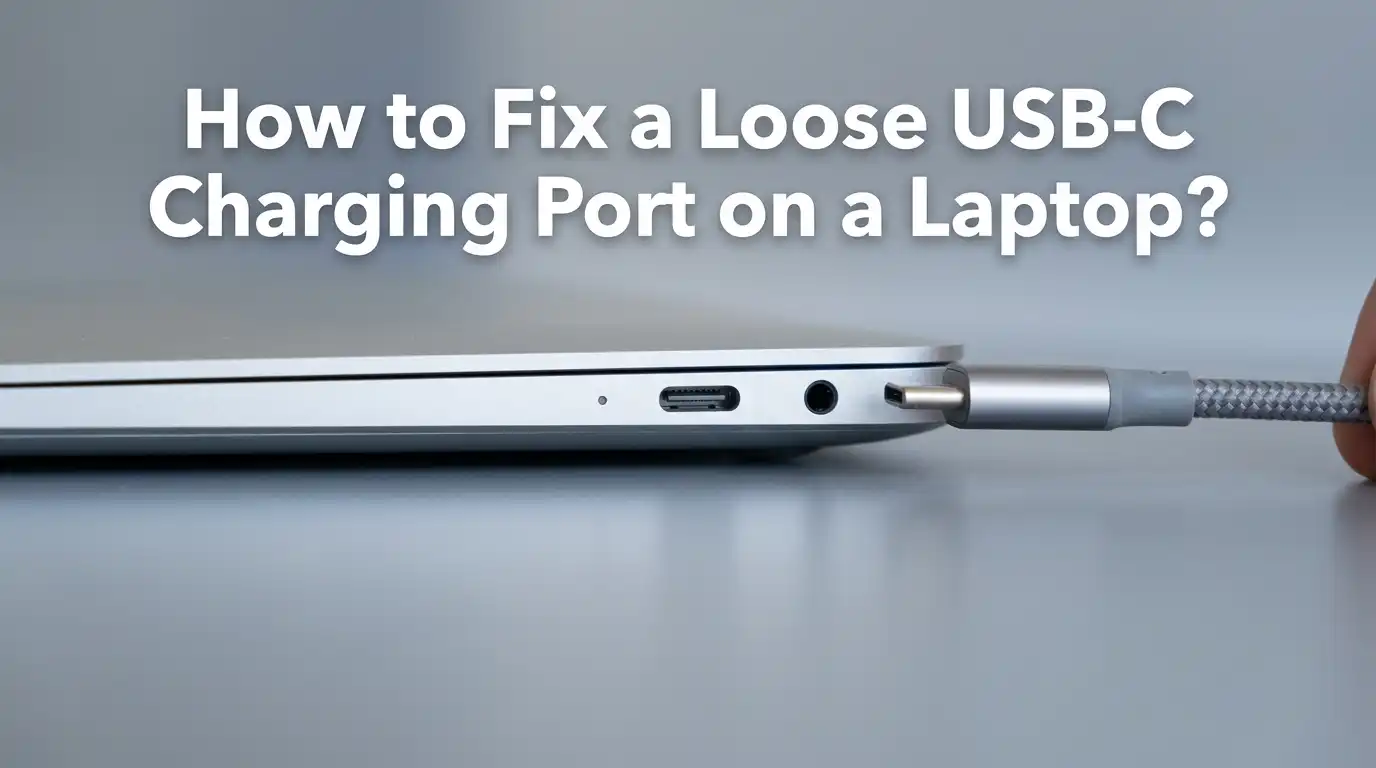
How to Fix a Loose USB-C Charging Port on a Laptop?
Your laptop charger keeps slipping out. You wiggle it. You prop it at a strange angle. You balance a book on top to keep it connected. Sound familiar?
A loose USB-C charging port is one of the most frustrating problems a laptop owner can face. The good news is that you can often fix it yourself without spending a fortune at a repair shop.
This guide walks you through every method, from quick five minute cleaning tricks to deeper hardware fixes. You will learn how to spot the real cause, try safe at home solutions, and know exactly when to call a professional.
Key Takeaways
- Dirt and lint cause most loose ports. Pocket fuzz, dust, and food crumbs pack into the port and stop the cable from seating fully. A simple cleaning often restores a tight fit without any repair work.
- Worn cables can mimic a broken port. Before blaming the laptop, test a different USB-C cable. Many people replace ports that were perfectly fine while the cable was the real problem.
- Bent or loose internal pins are a deeper hardware issue. These need careful inspection with a flashlight and sometimes a steady hand with a needle to realign.
- Resoldering the port fixes ports that wobble because the solder joints have cracked. This requires basic soldering skills and patience, but it saves the cost of a new motherboard.
- Full port replacement is the last resort. It costs anywhere from fifty to two hundred dollars at a repair shop, depending on the laptop brand and labor rates.
- Prevention matters. Gentle cable handling, regular port cleaning, and using a magnetic adapter can stop the problem from coming back.
What Causes a Loose USB-C Charging Port
A USB-C port has a small metal tongue inside surrounded by tiny contact pins. Over time, several things can loosen the connection. The most common reason is debris buildup. Pocket lint, dust, and crumbs collect inside and push the cable out slightly.
The second cause is wear on the internal pins. Every time you plug and unplug a cable, the metal contacts flex a little. After thousands of uses, they lose their grip.
A third cause is cracked solder joints on the motherboard. If you yank the cable sideways often, the port can rock back and forth until the solder breaks.
Finally, sometimes the cable itself is worn out. A frayed cable head will feel loose in any port. Knowing the cause helps you pick the right fix.
Test the Cable Before You Blame the Port
This step takes one minute and saves hours of work. Grab a different USB-C cable, ideally one that came with another device, and plug it into your laptop. If the new cable fits snugly and charges without wiggling, your old cable is the problem.
USB-C cables wear out faster than people expect. The small metal tip can bend, the inner pins can collect grime, and the plastic shell can crack. Replacing a cable costs far less than repairing a port. Also try your suspicious cable in another laptop or phone. If it feels loose everywhere, you have your answer.
Pros: Quick, free, and often solves the issue instantly. Cons: You need a second USB-C cable on hand to test with.
Inspect the Port With a Flashlight
Now look inside the port itself. Turn off your laptop and unplug everything. Shine a bright flashlight straight into the USB-C opening. Use a magnifying glass if you have one. You are looking for three things: debris, a bent center tongue, and damaged pins on the top or bottom rows.
A healthy port has a centered metal tongue with even spacing on both sides. If the tongue leans left or right, that is a serious sign of damage. If you see fluff, gray dust, or shiny crumbs, cleaning will likely fix it. If you see a bent tongue, you need a more careful repair.
Pros: Costs nothing and reveals the real problem. Cons: Small ports can be hard to see clearly without good lighting and steady hands.
Clean the Port With Compressed Air
Compressed air is the safest first cleaning method. Hold the can upright so no liquid sprays out. Aim the nozzle at the port from a slight angle and give short bursts of one or two seconds. Rotate the laptop and blow from different sides to push debris out.
Do not hold the trigger down for long periods. Long blasts can shoot cold liquid into the port and damage the contacts. Two or three short bursts are plenty. After blowing, shake the laptop gently with the port facing down so any loose particles fall out.
Pros: No risk of scratching internal pins, very cheap, and works on most cases of light dust. Cons: Will not remove sticky grime or tightly packed lint that has compressed over months.
Remove Stuck Debris With a Toothpick
When compressed air fails, switch to a wooden toothpick. Never use metal objects like paper clips or pins. Metal can short circuit live components and bend the delicate pins inside the port. A wooden toothpick is soft enough to be safe but firm enough to scrape out packed lint.
Turn off the laptop first. Gently insert the toothpick along the top and bottom edges of the port, scraping toward the opening. Pull out any fuzz that comes loose. Avoid pressing on the center tongue, since it bends easily. Work slowly and check your progress with a flashlight every few scrapes.
Pros: Removes stubborn lint that air cannot. Cons: Risk of breaking off a wooden splinter inside, and you need a steady hand to avoid damaging pins.
Use Isopropyl Alcohol for Deep Cleaning
For sticky residue from spilled drinks or food, isopropyl alcohol works well. Use ninety percent or higher concentration. Dip the very tip of a cotton swab into the alcohol, then squeeze out almost all the liquid against a paper towel. The swab should feel barely damp, not wet.
Gently swab the inside of the port. The alcohol dissolves grease and dries in seconds. Let the port air dry for at least fifteen minutes before plugging anything in. Some people wrap a tiny piece of microfiber cloth around a toothpick and dampen that instead, which gives better control.
Pros: Cuts through sticky grime that nothing else removes. Cons: Liquid near electronics carries a small risk if you use too much.
Realign Bent Internal Pins Carefully
If your flashlight check showed a bent center tongue, you can sometimes fix it with patience. Use a fine sewing needle or the tip of a wooden toothpick. Look closely so you know which direction the tongue is leaning. Apply very light pressure in the opposite direction to nudge it back to center.
Work in tiny movements. Push, look, push again. Do not force anything. The metal tongue is thin and will snap if bent too far the other way. If the bend is severe, this method may not work, and you will need a port replacement.
Pros: Restores a snug fit without opening the laptop. Cons: Easy to make the damage worse, and broken tongues mean a full port replacement.
Tighten the Cable Tip Instead of the Port
Here is a clever trick many people miss. Sometimes the port is fine but the cable connector has loosened. You can gently crimp the outer metal shell of the USB-C cable tip. Use small needle nose pliers and squeeze the sides of the metal connector very lightly, just enough to narrow it by a fraction of a millimeter.
Test the cable after each tiny squeeze. Stop the moment it fits snugly. Over crimping will stop the cable from fitting in any port, including new ones. This trick has saved many cables and ports from being replaced unnecessarily.
Pros: Free, fast, and avoids any laptop disassembly. Cons: Easy to overdo, and a ruined cable tip cannot be undone.
Reseat the Port Connector Inside the Laptop
Some laptops have a USB-C port that connects to the motherboard with a small ribbon cable rather than being soldered directly. If yours is built this way, opening the laptop and reseating the connector can fix wobble issues. Check your laptop model online to confirm before opening anything.
Power down, unplug the charger, and remove the battery if possible. Use the correct screwdriver to remove the bottom panel. Locate the USB-C port assembly, gently unclip the ribbon cable, and press it firmly back into place. Make sure the connector clicks fully home before reassembling.
Pros: Fixes ports that have come slightly loose from their connector. Cons: Requires opening the laptop, which voids some warranties.
Resolder Loose Solder Joints
If the port wobbles inside the laptop or rocks when you press on it, the solder joints holding it to the motherboard are cracked. This is common on laptops that have been dropped or yanked. Fixing it needs a fine tip soldering iron, flux, and patience.
Open the laptop, find the port, and look at the solder pads under a magnifying glass. Crack lines will show as dull gray rings. Apply a tiny dab of flux, heat each joint for a second or two, and add a small amount of fresh solder. Reflowing the joints restores the bond without replacing the whole port.
Pros: Cheaper than a new port and keeps the original hardware. Cons: Requires soldering skills, and a slip can damage nearby chips permanently.
Replace the USB-C Port Entirely
When nothing else works, the port has to come out. On laptops with a daughterboard, you simply unscrew the small board, unplug the ribbon cable, and swap in a new one. On models where the port is soldered to the main board, the job is much harder and needs a hot air rework station.
Replacement daughterboards for common laptops are widely sold online for twenty to sixty dollars. Search your laptop model plus the words “USB-C daughterboard” to find the right part. Follow a teardown video specific to your model so you do not break clips or cables along the way.
Pros: Permanent fix that restores like new performance. Cons: Costs more, takes time, and not all laptops have user replaceable ports.
When to Take It to a Repair Shop
If you do not feel comfortable opening your laptop, a repair shop is the smart choice. Independent shops typically charge between fifty and one hundred fifty dollars for a USB-C port replacement, depending on the laptop model. Manufacturer service centers cost more but use original parts.
Bring your laptop, the charger, and any spare cables you tested with. Tell the technician what you have already tried. Ask for a written quote before they start work. Also ask whether they offer a warranty on the repair, which most reputable shops do for thirty to ninety days.
Pros: Professional results without any risk to you. Cons: Higher cost and you may be without your laptop for a few days.
How to Prevent the Problem From Returning
Once your port works again, protect it. Always pull the cable straight out, never sideways or upward. Sideways force is the number one cause of cracked solder joints. Clean the port with compressed air once every two or three months to stop lint from packing in.
Consider using a magnetic USB-C adapter. The adapter stays in the port, and the cable snaps onto it with magnets. This means zero wear on your actual laptop port. If you travel a lot, store your laptop in a sleeve so pocket lint and bag fuzz stay away from the openings.
Pros: Extends port life by years and avoids future repairs. Cons: Magnetic adapters cost extra and can affect fast charging speeds slightly.
Frequently Asked Questions
Can a loose USB-C port damage my laptop battery?
A loose port usually will not damage the battery directly. However, inconsistent charging can cause the battery to discharge fully and recharge often, which shortens its lifespan over months. Fixing the port quickly protects the battery health.
How do I know if my USB-C cable or my port is the problem?
Test the suspect cable in another device, and test another cable in your laptop. If the cable feels loose everywhere, replace it. If only one cable fits one port poorly, the port likely needs cleaning or repair.
Is it safe to use rubbing alcohol inside a laptop port?
Yes, but only isopropyl alcohol at ninety percent or higher. Apply just a tiny amount on a cotton swab and let the port dry completely before plugging in any cable. Lower concentration alcohols contain water and take much longer to dry.
How much does a professional USB-C port repair cost?
Most independent repair shops charge between fifty and one hundred fifty dollars, including parts and labor. Brand service centers like Apple, Dell, or HP usually charge more, often two hundred dollars or above for the same job.
Can I keep using my laptop with a loose charging port?
You can, but it is risky. The intermittent connection can corrupt files during charging interruptions and stress the battery. Fix the port soon, or at least clean it, to avoid bigger problems down the line.
Will opening my laptop void the warranty?
In many cases yes, especially for newer machines. Check your warranty terms before opening the laptop. If the device is still under warranty, contact the manufacturer first since they may repair it for free.

Hi, I’m Pearl Standen, the voice behind The Web Utility. I’m a passionate tech enthusiast who loves exploring the latest gadgets, smart devices, and electronics that make everyday life easier. Through my website, I share honest, well-researched reviews of trending Amazon products to help you make smarter buying decisions.