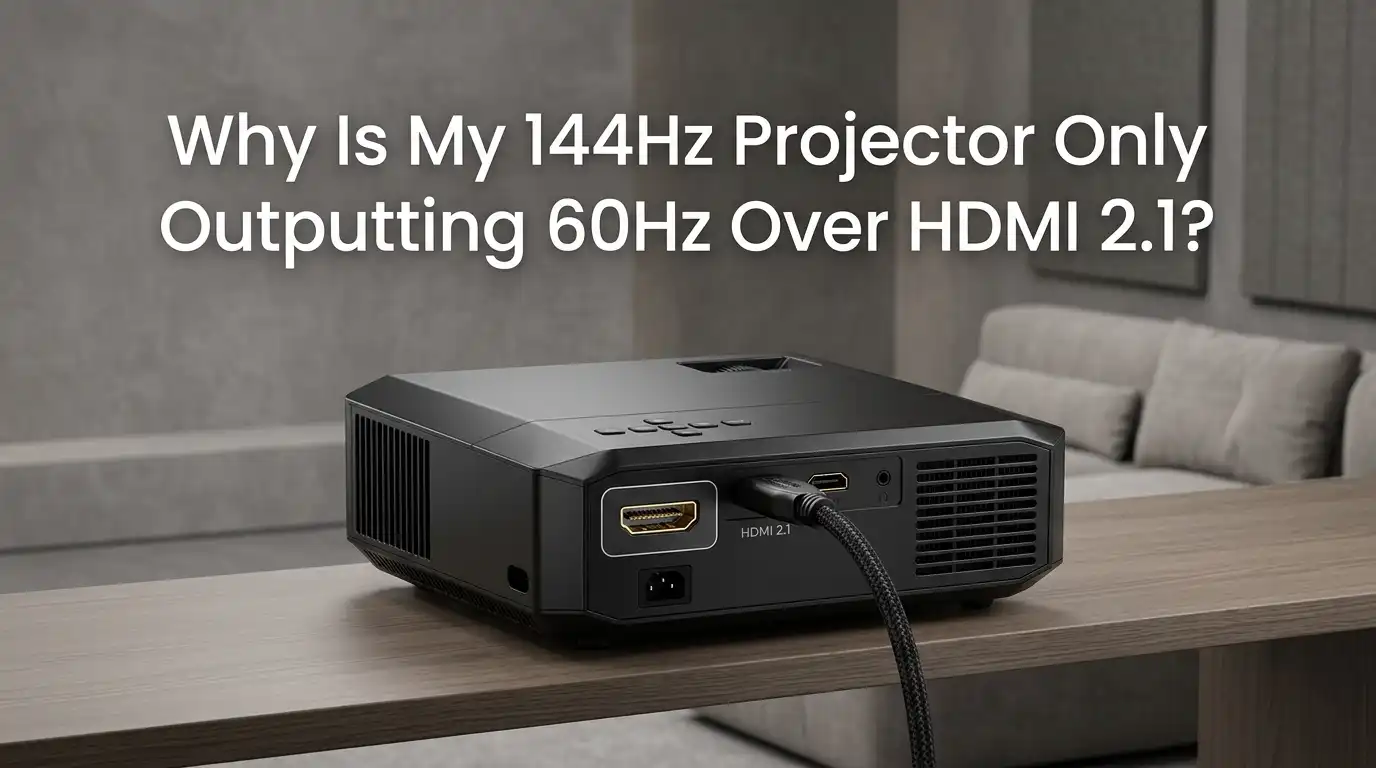
Why Is My 144Hz Projector Only Outputting 60Hz Over HDMI 2.1?
Bought a shiny new 144Hz projector and plugged it in with an HDMI 2.1 cable, but the screen still says 60Hz? You are not alone.
This is one of the most common frustrations for gamers and home theater fans in 2026. The good news is that the fix is usually simple once you know where to look.
This guide walks you through every reason your projector might be locked at 60Hz. You will learn how to test your cable, change GPU settings, update firmware, and adjust the projector menu. By the end, you will have a buttery smooth 144Hz picture running the way you paid for.
In a Nutshell:
- The cable is the top culprit. Most 60Hz lockouts happen because the HDMI cable is not certified Ultra High Speed (48Gbps). A label that says “HDMI 2.1” does not always mean the cable can carry 144Hz at 4K.
- The port matters as much as the cable. Some projectors only have one true HDMI 2.1 port. The other ports may look identical but run at HDMI 2.0 speeds, which cap you at 60Hz at 4K.
- Your GPU controls the refresh rate. Windows, Nvidia Control Panel, or AMD Radeon Settings must be set manually to 144Hz. The system does not always pick the highest rate on its own.
- Firmware fixes a lot. Projector brands like BenQ, Epson, JMGO, and XGIMI have released firmware updates that unlock or repair 144Hz signals.
- EDID handshakes can fail. A clean reboot, port swap, and cable reseat fix many handshake errors that lock the signal at 60Hz.
- Resolution and color depth share bandwidth. Dropping from 4K 10 bit HDR to 1080p 8 bit can free up enough bandwidth for full 144Hz.
Understanding How HDMI 2.1 Actually Works
HDMI 2.1 is a standard, but the cable, the source, and the projector must all support it together. The standard allows up to 48Gbps of bandwidth. That is enough for 4K at 144Hz with no compression in many cases.
But here is the catch. Many cables marked “HDMI 2.1” only carry 18Gbps or 24Gbps. That is the same as HDMI 2.0. When the projector and source negotiate, they fall back to 60Hz because the cable cannot handle more.
Always check the cable spec sheet for the words “Ultra High Speed HDMI Certified”. That is the only label that guarantees full HDMI 2.1 performance.
Check If Your Cable Is Truly HDMI 2.1 Certified
This is the first step every time. Pick up the cable and look for the Ultra High Speed HDMI certification label. The label has a QR code you can scan with the HDMI Cable Certification app. The app confirms if the cable is real or fake.
If the cable came free with the projector, it might be a basic 18Gbps version. Even premium brands sometimes ship cheap cables in the box. Replace any uncertified cable with a known 48Gbps model.
Pros of swapping the cable first: It is the cheapest fix and takes less than a minute. Cons: A new certified cable can cost more than a basic one, and counterfeit cables are everywhere online.
Confirm Your Projector Port Supports Full Bandwidth
Look at the back of your projector. Many modern projectors have two or three HDMI ports, but only one runs at full HDMI 2.1 bandwidth. The others are HDMI 2.0 ports.
Check the manual or the printed labels next to each port. The full speed port is often labeled HDMI 2.1, eARC, or 48G. Plug your source directly into that port.
For example, the BenQ X3100i and JMGO N1 Ultra each have only one true HDMI 2.1 input. Plugging into the wrong port silently caps you at 60Hz at 4K.
Pros: Free fix and instant. Cons: You may lose a useful port like eARC for your soundbar. You might also need to rearrange your setup.
Set the Correct Refresh Rate in Windows
Windows does not always default to 144Hz. You must change it by hand. Open Settings, then System, then Display, then Advanced Display.
At the top, pick the projector from the dropdown. Below, set the Refresh Rate to 144Hz. If 144Hz is not listed, the cable or GPU is the problem, not Windows.
You can also right click the desktop, choose Display Settings, then scroll to Advanced Display Settings on Windows 11. The list shows every refresh rate your hardware reports.
Pros: Simple two minute fix. Cons: Windows sometimes hides the option behind driver issues, so you may need to update graphics drivers first.
Adjust Refresh Rate in Nvidia Control Panel
If you use an Nvidia GPU, open Nvidia Control Panel. Click Change Resolution on the left side. Pick your projector at the top of the list.
In the dropdown for refresh rate, choose 144Hz. Click Apply. The screen will flash, and you confirm the change. If 144Hz is missing, click Customize, then Create Custom Resolution, and add 144Hz manually.
Always test the custom resolution before saving. A bad custom timing can cause a black screen for a few seconds.
Pros: Gives you fine control over every timing setting. Cons: Custom resolutions can introduce flicker or signal drops if the math is off.
Adjust Refresh Rate in AMD Radeon Software
For AMD users, the path is similar. Open AMD Radeon Software. Go to Settings, then Display. Pick the projector from the list.
Scroll to Custom Resolutions and click Create. Enter 144 in the refresh rate field, then click Save. Now go back to Windows Display settings and pick 144Hz.
AMD drivers also have a Virtual Super Resolution toggle that can interfere. Turn it off while testing. Some AMD cards limit HDMI 2.1 output unless the latest Adrenalin driver is installed.
Pros: Built into the driver and free. Cons: AMD HDMI 2.1 output had bugs on older Radeon RX 6000 cards, so a driver update is often required.
Update Your Projector Firmware
Projector makers fix HDMI 2.1 bugs all the time through firmware. JMGO, BenQ, Hisense, and XGIMI have all pushed updates that unlocked 144Hz over HDMI in the last year.
Open the projector menu and look for System, then About, then Firmware Update. Connect the projector to Wi Fi and let it check. Some projectors need a USB drive with the firmware file.
After the update, factory reset the HDMI input. This clears any old EDID data that might still lock you at 60Hz.
Pros: Free and often fixes multiple issues at once. Cons: Updates can take 20 minutes, and a failed update can brick the projector if power is cut.
Update Your GPU Drivers
Old GPU drivers cause refresh rate problems. Nvidia and AMD release new drivers every month with HDMI 2.1 fixes. An outdated driver can cap your output at 60Hz even with the right cable.
For Nvidia, download the latest Game Ready Driver from Nvidia’s website. For AMD, grab the latest Adrenalin Edition from amd.com. Do a clean install when prompted.
After the install, reboot the PC. Then test the refresh rate again in Windows display settings. Most users see 144Hz appear right after the driver update.
Pros: Fixes many bugs beyond refresh rate. Cons: New drivers sometimes break other games, so back up your old driver first.
Check the Projector’s Own Refresh Rate Setting
Some projectors have a hidden setting that caps the HDMI input speed. Look in the menu for an option called HDMI Input Mode, Enhanced Format, or HDMI EDID 2.1.
For example, BenQ projectors call it HDMI Format and you must set it to Enhanced. Epson uses EDID Mode with options for 4K 60Hz or 4K 120Hz. Pick the highest one available.
If you do not change this setting, the projector tells your GPU it can only handle 60Hz. The handshake then locks at the lower rate, even with a perfect cable.
Pros: Instant fix once you find the menu. Cons: The setting hides under different names on every brand, so you may need the manual.
Lower Resolution or Color Depth to Free Bandwidth
HDMI 2.1 has 48Gbps of bandwidth, but 4K at 144Hz with 10 bit HDR uses about 40Gbps. Add HDR metadata and audio return, and you can run out of room.
Try dropping the resolution to 1440p or the color depth to 8 bit. In Nvidia Control Panel, set Output Color Depth to 8 bit and Output Color Format to YCbCr 4:2:2.
This trick works well for gaming projectors that struggle with full 4K 144Hz signals. You give up a small amount of color detail for a much smoother frame rate.
Pros: Works on any cable and any GPU. Cons: You lose some HDR punch and may see slight color banding on bright scenes.
Use DSC or Chroma Subsampling
Display Stream Compression (DSC) is a visually lossless tool that squeezes the signal so it fits the cable. If both your projector and GPU support DSC, enable it in the GPU menu.
If DSC is not supported, switch to 4:2:0 chroma subsampling. This drops some color data so the signal fits in less bandwidth. Most movies already use 4:2:0, so the change is invisible for video.
In Nvidia Control Panel, find Output Color Format and pick YCbCr 4:2:0. Text on the desktop can look slightly softer with 4:2:0, so use it for gaming and video only.
Pros: Keeps full 4K 144Hz without a hardware change. Cons: Desktop text and fine UI lines may look fuzzy.
Test the Handshake by Power Cycling Everything
HDMI handshake errors are silent. The projector and GPU exchange EDID data when they connect, and a single hiccup can lock the rate at 60Hz.
Unplug the HDMI cable from both ends. Power off the projector and the PC. Wait 30 seconds. Plug the cable back into the projector first, then the PC. Power on the projector before the PC.
This order forces a clean EDID handshake. Many users report the 144Hz option appears right after this reset. Doing this once a month keeps the connection healthy.
Pros: Free and fast. Cons: You have to repeat it after any power outage or input change.
Try a Shorter or Active HDMI Cable
Long HDMI 2.1 cables lose signal strength. Anything over 3 meters can drop bandwidth, especially on cheaper cables. Try a 1 meter or 2 meter certified cable as a test.
If your projector is on the ceiling and needs a long run, switch to an active optical HDMI cable. These cables use fiber inside and keep full 48Gbps over 10 meters or more.
Make sure the active cable is directional. The end labeled Source goes into the GPU, and the Display end goes into the projector. Plugging them backwards causes a 60Hz fallback or no signal at all.
Pros: Solves long run problems for good. Cons: Active optical cables cost more and can fail if bent too sharply.
FAQs
Does HDMI 2.1 always support 144Hz?
HDMI 2.1 supports up to 4K at 144Hz only when the cable, source, and display all comply. A cable labeled HDMI 2.1 without the Ultra High Speed certification may only carry 60Hz at 4K.
Why does my projector show 120Hz instead of 144Hz?
Some projectors cap their HDMI 2.1 input at 120Hz at 4K. Check the spec sheet. If 144Hz is only supported at 1080p, drop the resolution in your GPU settings to unlock the higher rate.
Can I get 144Hz with HDMI 2.0?
Yes, but only at lower resolutions. HDMI 2.0 can carry 1080p at 144Hz and sometimes 1440p at 120Hz with chroma subsampling. You cannot get 4K 144Hz over HDMI 2.0.
How do I know if my HDMI cable is fake?
Look for the Ultra High Speed HDMI label with a QR code. Scan the code using the official HDMI Cable Certification app. If the app does not recognize the cable, it is not certified.
Will a firmware update void my projector warranty?
No. Official firmware updates from the maker do not void your warranty. They are designed to improve performance and fix bugs. Always use the official update tool from the maker’s website.
Why does 144Hz disappear after I turn off the projector?
This is an EDID handshake issue. The projector forgets its settings on power off, or Windows reverts to the safe default. Power on the projector before the PC to keep the 144Hz signal stable.
Do I need a special graphics card for 4K 144Hz?
You need a GPU with HDMI 2.1 output. That means Nvidia RTX 3000 series or newer, or AMD Radeon RX 6000 series or newer. Older GPUs only have HDMI 2.0, which caps you at 4K 60Hz.

Hi, I’m Pearl Standen, the voice behind The Web Utility. I’m a passionate tech enthusiast who loves exploring the latest gadgets, smart devices, and electronics that make everyday life easier. Through my website, I share honest, well-researched reviews of trending Amazon products to help you make smarter buying decisions.