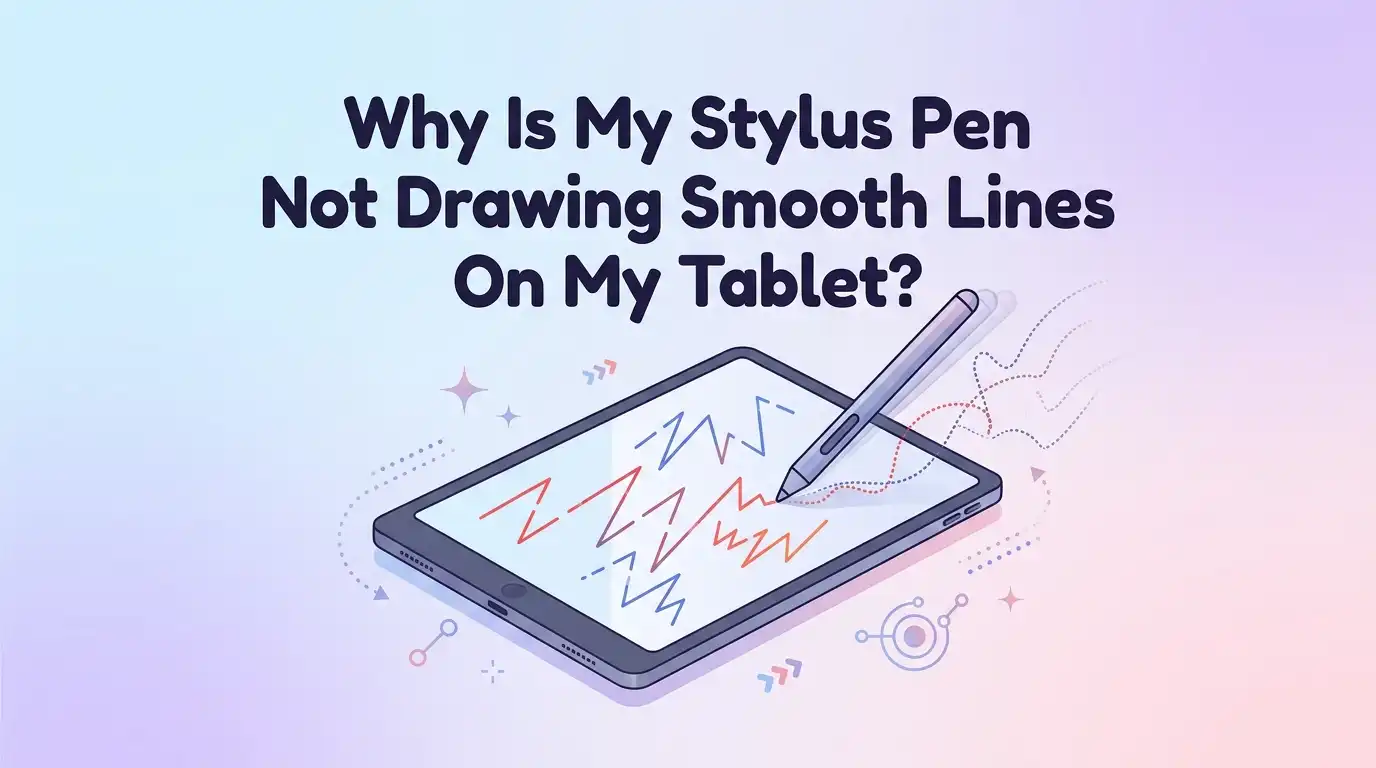
Why Is My Stylus Pen Not Drawing Smooth Lines On My Tablet?
Your stylus should glide across the screen like a real pen on paper. Instead, your lines come out shaky, jagged, or full of weird zigzags. You lift the pen and the stroke wobbles. You press down and nothing shows up. This problem frustrates artists, students, and note takers every single day.
The good news is simple. Most stylus smoothness problems have easy fixes. You do not need to buy a new tablet.
You do not need to be a tech expert either. Many issues come from a worn tip, a wrong setting, or a screen protector that fights your pen.
Key Takeaways
- A worn or loose pen tip causes most jagged lines. Check your tip first. Replace it if it looks flat, short, or wobbly. This single fix solves the problem for many people.
- Line smoothing settings live inside your drawing app. Turn on the stabilizer or smoothing slider. Set it to a medium level for clean lines without lag.
- Screen protectors change how your pen feels and tracks. A thick or cheap protector can block signals and create wobble. Try removing it or switching to a better one.
- Low battery and bad connection break pen tracking. Charge your active stylus fully. Re pair the Bluetooth link if your strokes skip or jump.
- Outdated drivers and software cause lag and jitter. Update your tablet drivers, your operating system, and your drawing app. This fixes many hidden bugs.
- Static, dirt, and palm touches confuse the screen. Clean the display, ground yourself in dry weather, and turn on palm rejection for smooth control.
What Smooth Lines Actually Need To Work
Your stylus and tablet form a team. Both parts must work in sync to create a clean line. When one part fails, your lines suffer. Understanding this helps you find the problem faster.
A smooth line needs three things working together. First, your screen must read the pen position many times per second. Second, your pen tip must stay in steady contact with the glass. Third, your software must draw the path without errors.
Any break in this chain creates wobble or gaps. A worn tip breaks contact. A weak signal breaks tracking. A slow app breaks the drawing path. Think of it like a relay race. If one runner stumbles, the whole race slows down.
This guide checks each link in the chain. We start with the easy fixes first. Always test after each step so you know what worked.
Check And Replace Your Stylus Pen Tip First
The pen tip touches your screen all day long. It wears down faster than you think. A worn tip is the number one cause of jagged lines. This is the first thing you should check.
Look at your tip closely. A healthy tip looks round and smooth. A bad tip looks flat, chipped, or very short. If your tip measures less than one millimeter, it needs replacing right now. A flat tip skids across the glass and creates ugly, broken lines.
To fix this, pull out the old tip. Most pens use a small tool or tweezers for this. Push the new tip in firmly until it clicks. A fresh tip restores steady contact instantly.
Pros: This fix is cheap, fast, and works for most people. New tips often come free with your pen.
Cons: You must buy the correct tip for your model. Wrong tips do not fit and can scratch your screen.
Turn On Line Smoothing Or Stabilizer Settings
Most drawing apps include a tool called a stabilizer or smoothing feature. This tool catches your shaky hand movements. It then draws a cleaner line than your hand actually made. This is a game changer for shaky lines.
Open your drawing app and find the brush settings. Look for words like stabilization, smoothing, or steady stroke. Apps like Procreate, Clip Studio Paint, and Ibis Paint all have this. Drag the slider up to a medium level and test a stroke.
Do not set the slider to the maximum. Too much smoothing creates a rubber band effect. Your line lags behind your pen and feels slow. A medium setting gives the best balance.
Pros: This fixes shaky hands instantly. It needs no new hardware and costs nothing.
Cons: High settings cause noticeable lag. Some basic apps lack this feature entirely.
Inspect Your Screen Protector For Pen Problems
Your screen protector sits between your pen and the screen. A thick or low quality protector can ruin your lines. It blocks the signal and adds extra space your pen must reach through. This creates wobble and missed strokes.
Tempered glass protectors are often too thick for some active pens. They push the pen tip away from the sensors below. Try removing the protector for a quick test. Draw a few lines and see if they smooth out right away.
A matte or paper like protector usually helps drawing. It adds friction so your pen does not slide around. This gives you more control over each stroke.
Pros: Swapping to a better protector fixes wobble and improves grip. Matte types reduce screen glare too.
Cons: Removing a glued protector takes care and patience. A new quality protector costs money. Matte surfaces can wear down pen tips faster.
Charge Your Stylus And Fix The Connection
Active styluses need power to work. A low battery causes skipping, jumping, and broken lines. This problem fools many users who blame the screen instead. Always rule out the battery first.
Charge your pen fully before your next test. Most pens charge through a cable or by attaching to the tablet. Watch for a light that shows the charge level. A pen with a near dead battery sends weak, patchy signals.
Bluetooth pens also lose their pairing sometimes. Re pairing the connection often fixes random glitches. Go to your tablet settings, forget the pen, then connect it fresh.
Pros: Charging and re pairing are free and quick. They solve many sudden problems with no other effort.
Cons: A pen that drains fast may have a dying battery. Battery replacement is hard on sealed pens and may need a new stylus.
Update Your Drivers, Software, And Drawing App
Outdated software causes hidden bugs. These bugs create lag, jitter, and wobbly lines. Tablet makers release updates to fix these exact issues. Keeping everything current solves more problems than people expect.
If you use a drawing tablet like Wacom, Huion, or XP Pen, check the driver first. Visit the official support site and download the newest driver. Install it, then restart your computer. Old drivers are a top cause of line lag.
Also update your tablet operating system. Update your drawing app from the app store too. Developers patch performance problems with each new version.
Pros: Updates fix bugs you cannot fix any other way. They are free and often improve speed overall.
Cons: Updates take time to download and install. A rare bad update can cause new issues, so check reviews first.
Clean Your Screen And Pen Tip Properly
Dirt and oil build up on your screen all day. This grime confuses the touch sensors. It also makes your pen tip drag and skip. A simple cleaning often brings back smooth lines fast.
Power off your tablet first. Use a soft microfiber cloth to wipe the screen. Add a tiny bit of screen safe cleaner if needed. Never spray liquid straight onto the glass. Wipe gently in small circles to lift oil and dust.
Check your pen tip for gunk too. A small amount of dirt on the tip causes skipping. Wipe it clean with the same soft cloth.
Pros: Cleaning is free and takes two minutes. It also keeps your screen healthy for the long run.
Cons: This fix alone may not solve deeper problems. Harsh cleaners can damage screen coatings, so use them with care.
Turn On Palm Rejection To Stop Stray Marks
When you draw, your palm rests on the screen. Your tablet can mistake your palm for the pen. This creates random marks and breaks your lines. Palm rejection tells the screen to ignore your hand.
Most modern tablets and apps have this feature. Open your drawing app settings and find palm rejection. Turn it on and test a stroke with your hand resting down. This stops stray dots and wobble caused by your skin.
Some tablets need you to disable finger input while using the pen. Check your device settings for this option too. Wait for the pen cursor to appear before resting your palm.
Pros: Palm rejection lets you draw naturally with your hand down. It removes a common source of messy lines.
Cons: Older tablets may lack this feature. Some apps override the system setting, so you must enable it twice.
Fix Static Electricity And Dry Air Issues
Dry air builds up static electricity on your body. Static can make your stylus glitch and jitter. This problem gets worse in winter when the air is very dry. Many artists never realize static is the cause.
Touch a metal object before you draw to release the charge. This grounds your body and calms the screen. A small humidifier in the room reduces static a lot. Adding moisture to the air keeps charges from building up.
Some users wear a thin cotton glove while drawing. The glove blocks skin oils and reduces static contact. This trick helps with both wobble and screen smudges.
Pros: These fixes are cheap and easy. A humidifier helps your comfort and your skin too.
Cons: Humidifiers cost money and need cleaning. Static fixes may only help in dry seasons, not all year.
Adjust Pen Pressure And Tracking Settings
Your pen settings control how the tablet reads your strokes. Wrong settings cause weak, broken, or shaky lines. A quick adjustment often makes a big difference. This step matters most for drawing tablets with drivers.
Open your tablet driver or device settings. Find the pressure sensitivity curve and test it. Set it to a soft or medium curve for smoother control. A balanced pressure curve gives you steady, even strokes.
Also check that your tablet tracks the pen as a pen, not a mouse. Mouse mode creates jumpy, ugly lines. Switch to pen mode for natural, accurate tracking. Hit the default button if your settings feel off.
Pros: This tuning gives you full control over your strokes. It costs nothing and works for all art styles.
Cons: Too many tweaks can confuse beginners. Finding the right curve takes some trial and error.
Restart Your Tablet And Reset Connections
Sometimes the simplest fix works best. A restart clears temporary glitches in memory. Your tablet runs many tasks at once. A small error can cause lag and jitter without warning. A fresh start often wipes the problem away.
Power off your tablet completely. Wait about thirty seconds before turning it back on. For drawing tablets, unplug all cables too. Hold the power button for twenty seconds to fully reset some devices. Then plug everything back in.
This step resets the link between your pen and screen. It also closes any frozen background apps. Many wobble and lag issues vanish after a clean restart.
Pros: Restarting is free, fast, and very effective. It often fixes problems you cannot even explain.
Cons: This fix may be temporary if a deeper issue exists. You may lose unsaved work, so save your art first.
Reduce App Lag By Closing Background Programs
Your tablet has limited power and memory. Too many open apps slow down your drawing. This slowdown shows up as laggy, delayed lines. Your pen moves but the line trails behind. Freeing up power fixes this fast.
Close every app you do not need right now. On a tablet, swipe away open apps from the recent screen. On a computer, close extra browser tabs and programs. A clean system gives your drawing app full speed.
Large canvas sizes and many layers also cause lag. Lower your canvas size if your tablet struggles. Merge layers you no longer need to edit.
Pros: This fix is free and boosts overall speed. Your tablet runs cooler and smoother too.
Cons: You must close apps often as a habit. Older tablets may still lag with heavy art files.
Test With A Different App Or Stylus
Sometimes the problem hides in one specific place. Testing helps you find the true cause. You isolate the issue by changing one part at a time. This method saves you from guessing and wasting money.
Open a different drawing app and draw some lines. If the lines look smooth, your old app was the problem. Update or reinstall that app to fix it. This test tells you if your hardware is fine.
You can also borrow another stylus to test. If a different pen draws smoothly, your old pen is worn out. If both pens wobble, the issue lives in your screen or settings.
Pros: This test pinpoints the exact cause quickly. It stops you from buying the wrong fix.
Cons: You need access to a second app or pen. Some premium apps cost money to try.
When To Get Professional Help Or A Replacement
Most problems have simple fixes. But some issues need expert hands. If you tried every step above and lines still wobble, the hardware may be broken. Knowing when to stop saves you time and stress.
A cracked screen or a faulty digitizer causes constant jitter. These parts sit under the glass and need a repair shop. A pen that fails after a full charge often has a dead battery. Contact the maker if your device is under warranty.
Sometimes a replacement makes more sense than a repair. Weigh the repair cost against a new device. Older tablets may not be worth fixing.
Pros: Pros fix deep hardware faults you cannot reach. Warranty service is often free.
Cons: Repairs cost money and take time. Out of warranty fixes can be very expensive.
Frequently Asked Questions
Why does my stylus draw wavy or zigzag lines?
Wavy lines usually come from a worn pen tip or a thick screen protector. Static electricity and a weak battery also cause this. Start by checking your tip and charging your pen. Then turn on line smoothing in your app for cleaner strokes.
Does a screen protector affect stylus smoothness?
Yes, it does. A thick or cheap protector blocks the pen signal and adds wobble. A matte or paper like protector usually helps because it adds grip. Test your pen with the protector removed to see if it is the cause.
How often should I replace my stylus tip?
Replace your tip when it looks flat, chipped, or shorter than one millimeter. Heavy users may need a new tip every few weeks. Light users can go months between changes. A fresh tip restores smooth contact right away.
Why is my stylus lagging behind my hand?
Lag often comes from too much smoothing, outdated drivers, or too many open apps. Lower your stabilizer setting to a medium level. Update your drivers and close background programs. A restart also clears lag in many cases.
Can a low battery cause skipping lines?
Yes. An active stylus with a low battery sends weak, patchy signals. This creates skips and broken strokes. Charge your pen fully before you draw. Re pair the Bluetooth link if skipping continues after charging.
Will updating my drawing app fix wobbly lines?
Often it will. App updates fix bugs that cause lag and jitter. Update your app, your tablet system, and your tablet drivers together. This clears many hidden problems you cannot fix any other way.

Hi, I’m Pearl Standen, the voice behind The Web Utility. I’m a passionate tech enthusiast who loves exploring the latest gadgets, smart devices, and electronics that make everyday life easier. Through my website, I share honest, well-researched reviews of trending Amazon products to help you make smarter buying decisions.